Install and connect
Install or update the Superluminal Blender add-on, then connect it to the correct account and organization.
Updated 2026-08-04
Authentication runs through your browser. No credentials pass through Blender.
Install the add-on
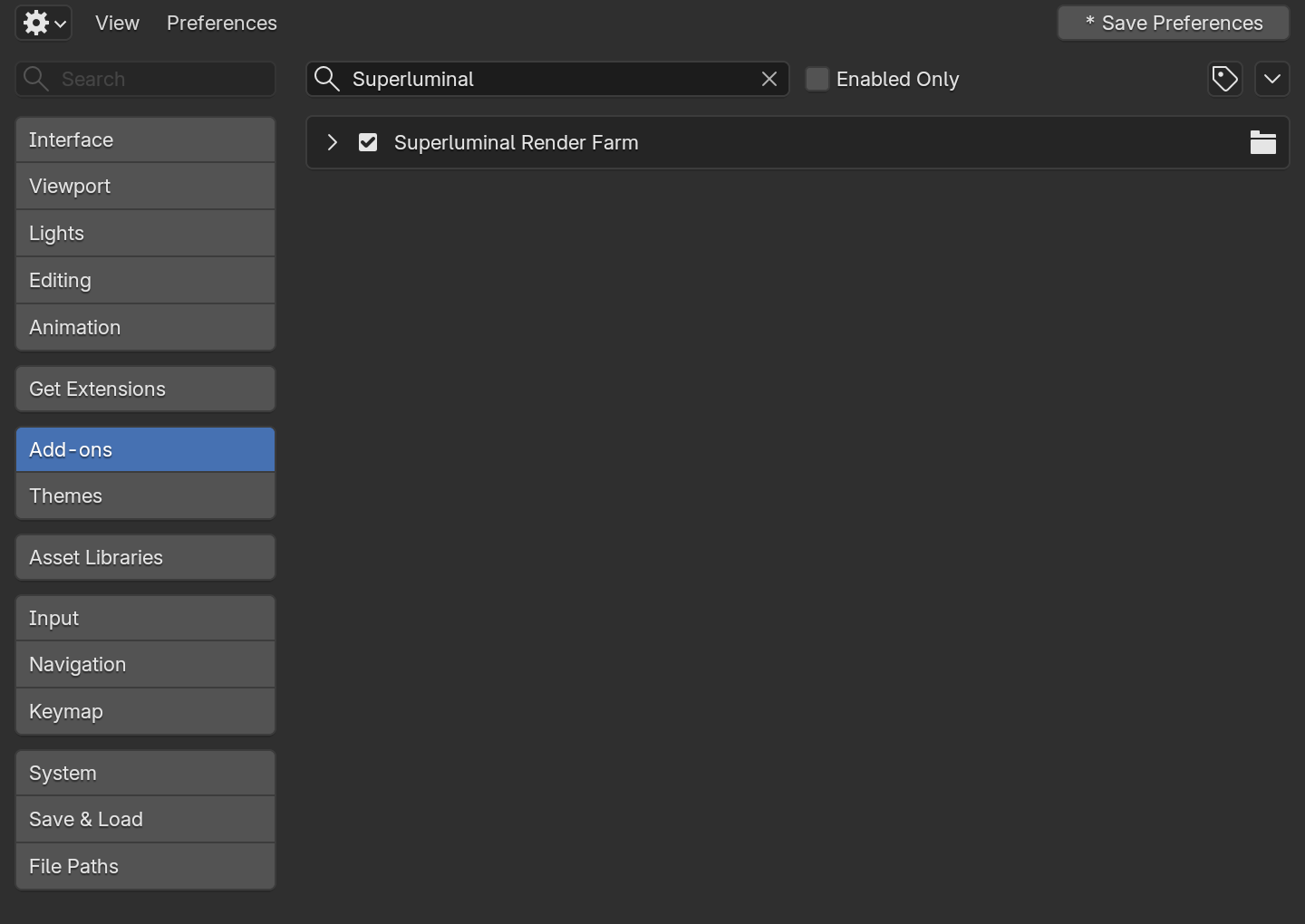
*Search finds the add-on. The header menu holds Install from Disk. The checkbox enables it.*
Download the release ZIP
Get the current release from superlumin.al/blender-addon. It resolves the latest GitHub release.
Open Blender preferences
Choose Edit → Preferences → Add-ons. If extension controls differ, use Install from Disk in the add-on menu.
Select the ZIP
Install the archive directly. Do not extract it.
Enable the add-on
Enable Superluminal Render Farm if Blender does not enable it automatically.
Find the panel
Open Render Properties and expand Superluminal Render.
Supported remote versions
The add-on targets Blender 4.0 through 5.2. The farm selects builds by major and minor version, not patch number.
The current add-on requires Blender 4.4 or newer
Run the add-on in Blender 4.4+. Its farm-version picker still targets Blender 4.0 through 5.2.
Connect to Superluminal
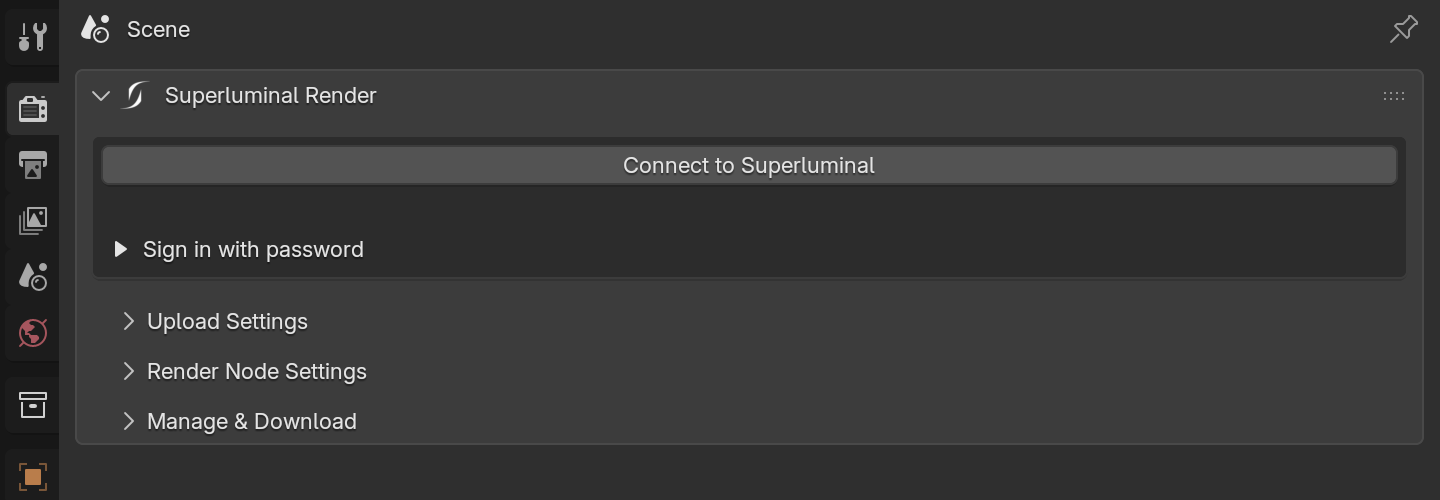
*Connect through the browser first. Password sign-in remains a collapsed fallback.*
- Click Connect to Superluminal.
- Sign in or confirm the request in the opened browser.
- Return to Blender and wait for the connected state.
- Select a project, or create one in the web app and refresh.
The collapsed password form is a fallback when the browser flow cannot complete. The password stays in memory only.
Use the intended organization
Projects and render credits are organization-scoped. Confirm the expected project is visible before submitting billable work.
Update safely
- Let running submission or download terminals finish first.
- Download the current release ZIP.
- Install it over the existing add-on using Install from Disk.
- Restart Blender if the UI or operators still reflect the previous release.
- Open the panel, verify the connection, and run a one-frame test before a deadline-critical job.
If connection fails
- Confirm the browser completed the authorization flow, not only opened the site.
- Return to Blender and wait briefly.
- Reopen Superluminal Render and retry the connection.
- Use password sign-in only as the fallback.
- Do not send passwords, access tokens, or a session file to support.
- Submit a job: Configure a representative still or an animation range.
- Connection troubleshooting: Collect safe diagnostics when authentication or projects fail to load.