Troubleshoot the Blender add-on
Diagnose connection, project, submission, dependency, render, and download problems without exposing credentials.
Updated 2026-08-04
Start with the narrowest reproducible case: one saved scene, one representative frame, the same Blender and add-on versions, and a record of the exact time and organization.
Connection and projects
Browser connection opened but Blender stays disconnected
- Confirm the browser flow reached its completed state.
- Return to the same Blender process and wait briefly.
- Retry Connect to Superluminal from the panel.
- Use the collapsed password form only as a fallback.
Install and connect describes the connection flow.
Project picker is empty
- Confirm you are signed into the intended account and organization.
- Create a project in the web app if none exists.
- Use the refresh button beside the project picker.
- If only one project is missing, confirm it belongs to the active organization.
Submission and upload
Submit buttons are disabled
- Save the
.blendfile. - Connect the account and select a valid project.
- Check the image format. Video output disables submission. Use an image sequence.
PROJECT shows excluded or cross-drive dependencies
- Make the paths relative under a common project root.
- Move or copy eligible assets beneath that root and relink them.
- Choose a better custom root when the automatic root is too narrow.
- Switch to ZIP when a self-contained package is the correct solution.
The terminal shows a red error panel
The worker stops and lists the exact blocking paths. The submission terminal guide explains each stop and the diagnostic report it writes.
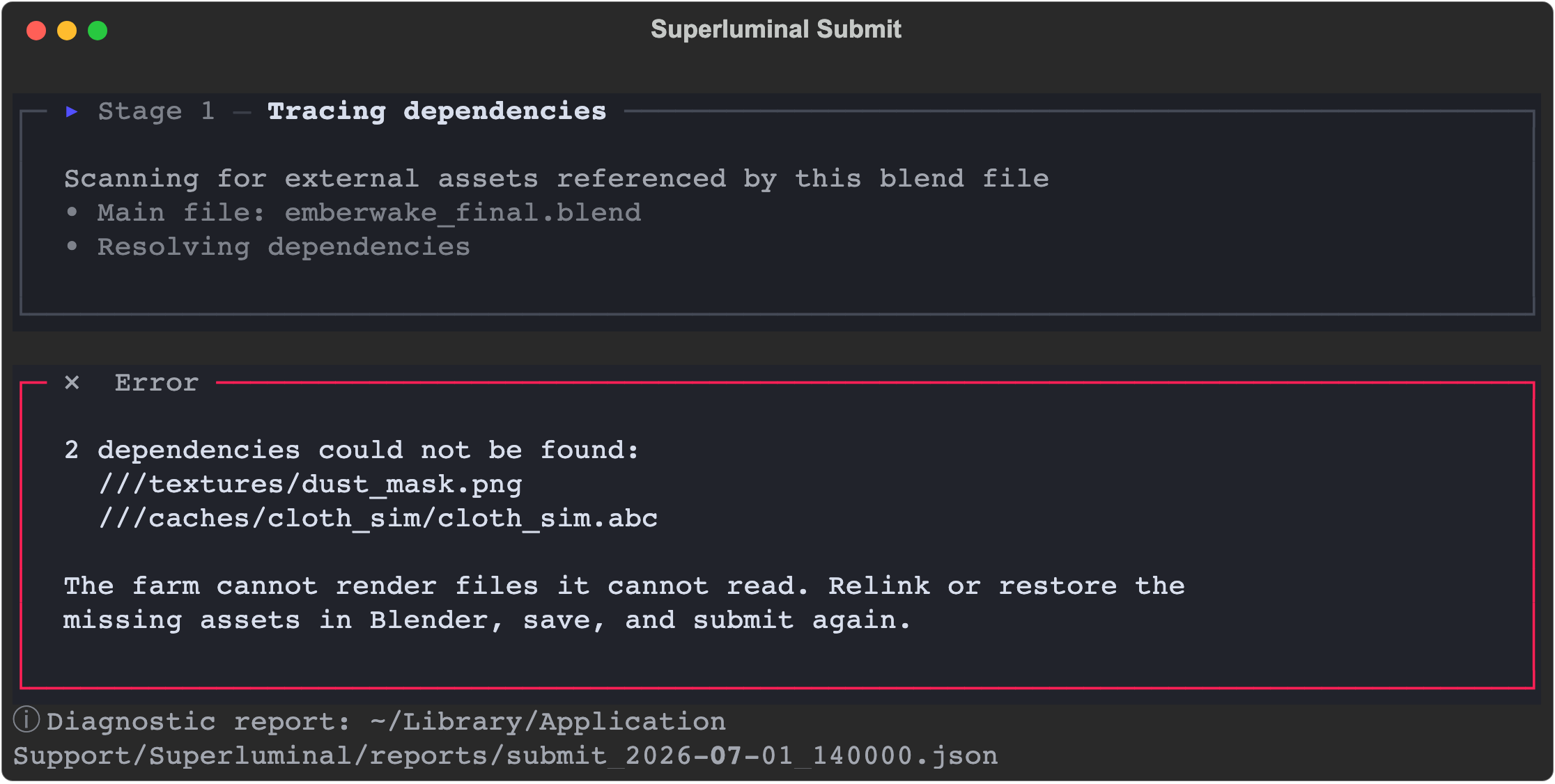
*A blocking trace error: the affected files are named relative to the project root.*
The external worker closes or the job never appears
The worker registers the job only after tracing, packaging or synchronization, and upload all succeed. Save the worker's final error text with secrets redacted. Check network access and disk space. Then retry one frame as a ZIP submission. If that works, the problem is path mapping, not your account or the service.
Do not expose secrets
Redact passwords, access tokens, session data, signed upload URLs, and credential-bearing request headers from screenshots or logs sent to anyone.
Render and frame errors
- Open the failed frame in the web job page.
- Inspect its logs and download the log file when available.
- Render the exact frame locally (not just frame 1) with the same Blender major/minor, engine, scene settings, view layer, and output.
- Check missing files, cache ranges, add-on runtime requirements, memory pressure, and output-node paths.
- If Blender wrote the full image before a repeatable cleanup crash, read about Finish Frame On Error. Do not enable it for an unexplained failure.
- Use Re-render only on the affected frame, and only after you correct or understand the cause.
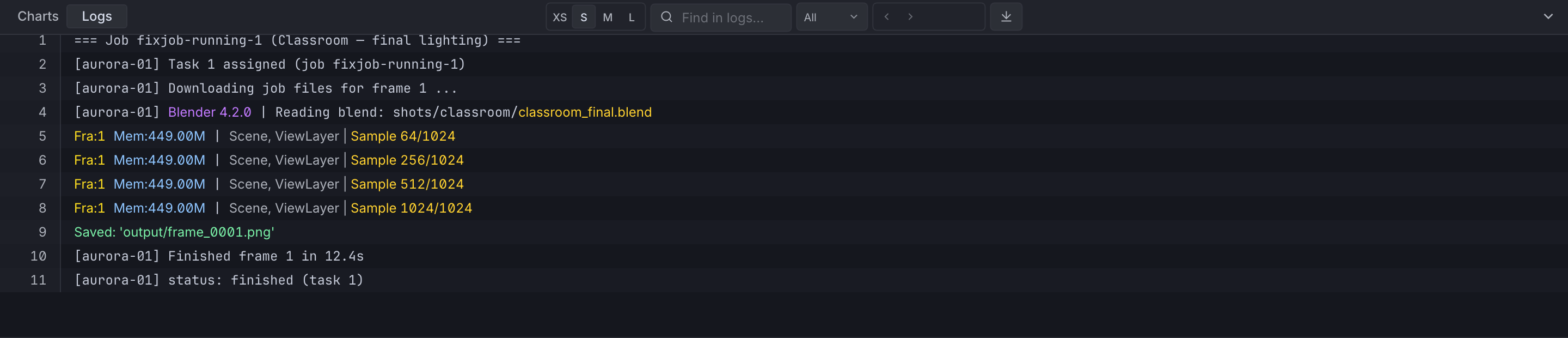
*The job page's log view, scoped to the selected frame, with search and a severity filter.*
If persistent execution produces different output than an isolated local render, compare a short job with Persistence Engine disabled.
Wrong or incomplete image
- Verify camera, frame, view layer, render layer, and scene selection.
- Compare full downloaded output, not only the compressed web preview.
- For multilayer EXR, choose the expected preview layer and inspect the original file in an EXR-aware application.
- Check compositor file-output nodes for additional named outputs.
- Confirm the selected image-format override did not replace the intended scene output.
Downloads
Interrupted download
Run Download job output again with the same job and folder. The downloader reconciles completed remote objects and existing local files.
No new frames arrive
- Confirm those frames are actually finished in the web app.
- Leave the downloader running. It polls for newly finished frames.
- Check whether the job is paused, blocked for funds, or errored.
A rerender is not reflected locally
Run the downloader again. It detects the changed remote file and replaces the older local copy.
Information to collect
When contacting support, include:
- organization and project name
- Job ID and the exact frame or range
- Blender major/minor and add-on version
- upload mode and any custom project root
- image format, render pattern, and experimental settings
- the event timestamp with timezone
- a downloaded web log or redacted terminal error
- short reproduction steps and what happened versus what you expected
- Support options: Use built-in chat, email, or Discord with a complete diagnostic packet.
- Dependencies: Audit files, caches, and add-ons before retrying.
- Web logs: Search, filter, navigate, and download the current frame's logs.