Read the submission terminal
Understand the terminal window that opens on submit: tracing, packing, uploading, the success screen, and how to share its diagnostics.
Updated 2026-08-04
Submit Still or Submit Animation opens a separate terminal window: the submission worker. It traces dependencies, packages or synchronizes them, uploads everything, and only then registers the render job. Blender stays responsive. Keep the terminal open until it finishes.
Stage 1: Tracing
The worker scans the .blend for everything the farm needs: linked libraries, images, caches, fonts, and other external files. The trace table lists each dependency with source blend file, data block, resolved path, and status.
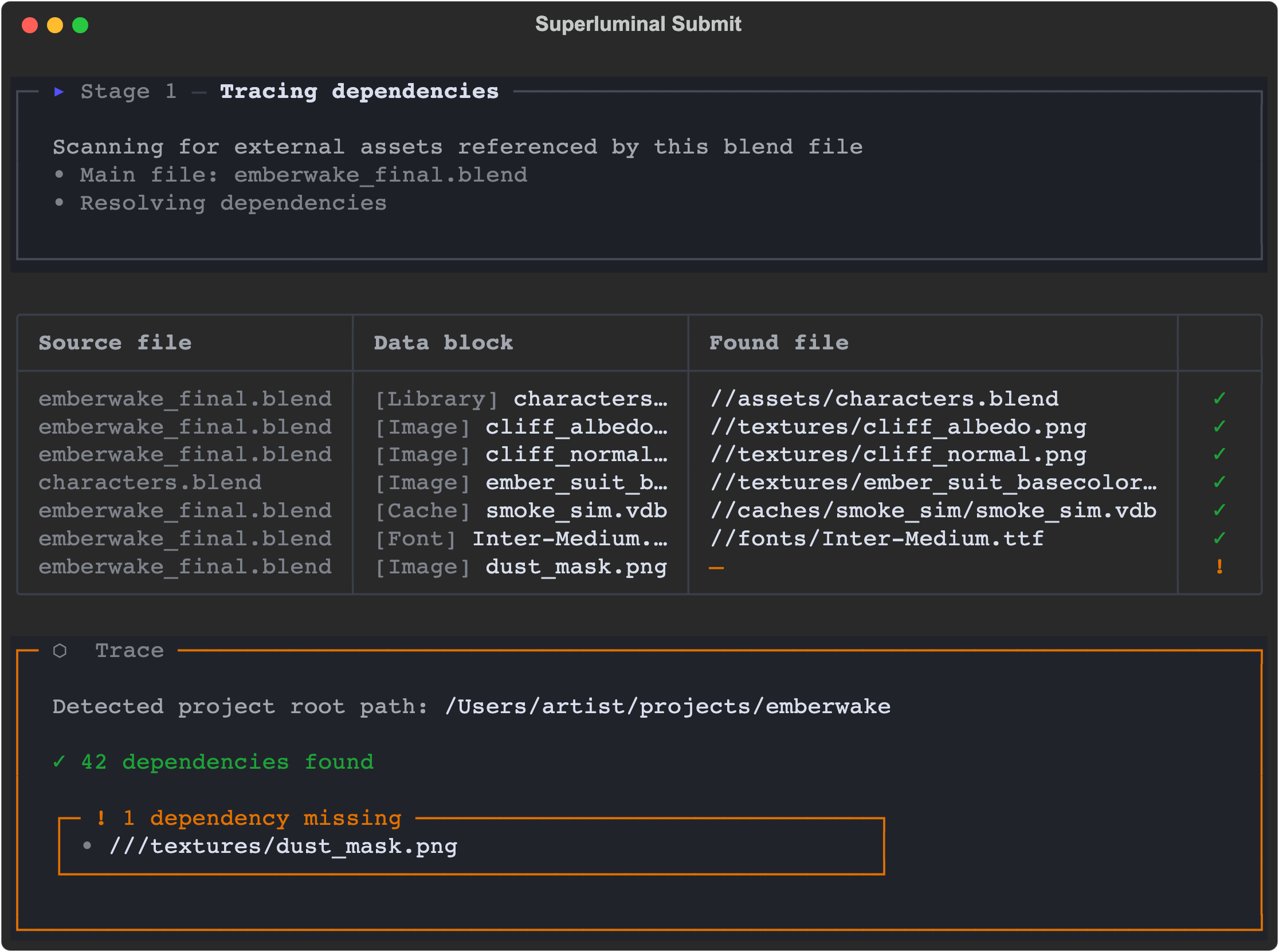
*Green: found and readable. Orange: missing. The summary panel lists every missing path.*
| Column | Meaning |
|---|---|
| Source file | The blend file that references the dependency, useful when linked libraries pull in their own files. |
| Data block | The Blender data type and name ([Image], [Library], [Cache], [Font], …). |
| Found file | The path the worker resolved, shown relative to the detected project root (//). |
| Status | ✓ found, ! missing, ✗ unreadable. |
The summary panel repeats the totals. For PROJECT uploads it shows the detected project root: the folder every dependency must live beneath. If it looks wrong, adjust it in Upload Settings.
Missing is a warning, unreadable is a stop
A missing file can be intentional (a muted texture, an unused datablock). Unreadable files and blocking path problems stop the submission. Fix them in Blender and submit again.
Stage 2: Packing
ZIP builds a self-contained archive. PROJECT maps files beneath the project root and synchronizes only what changed. The packing table shows each file and how it was stored.
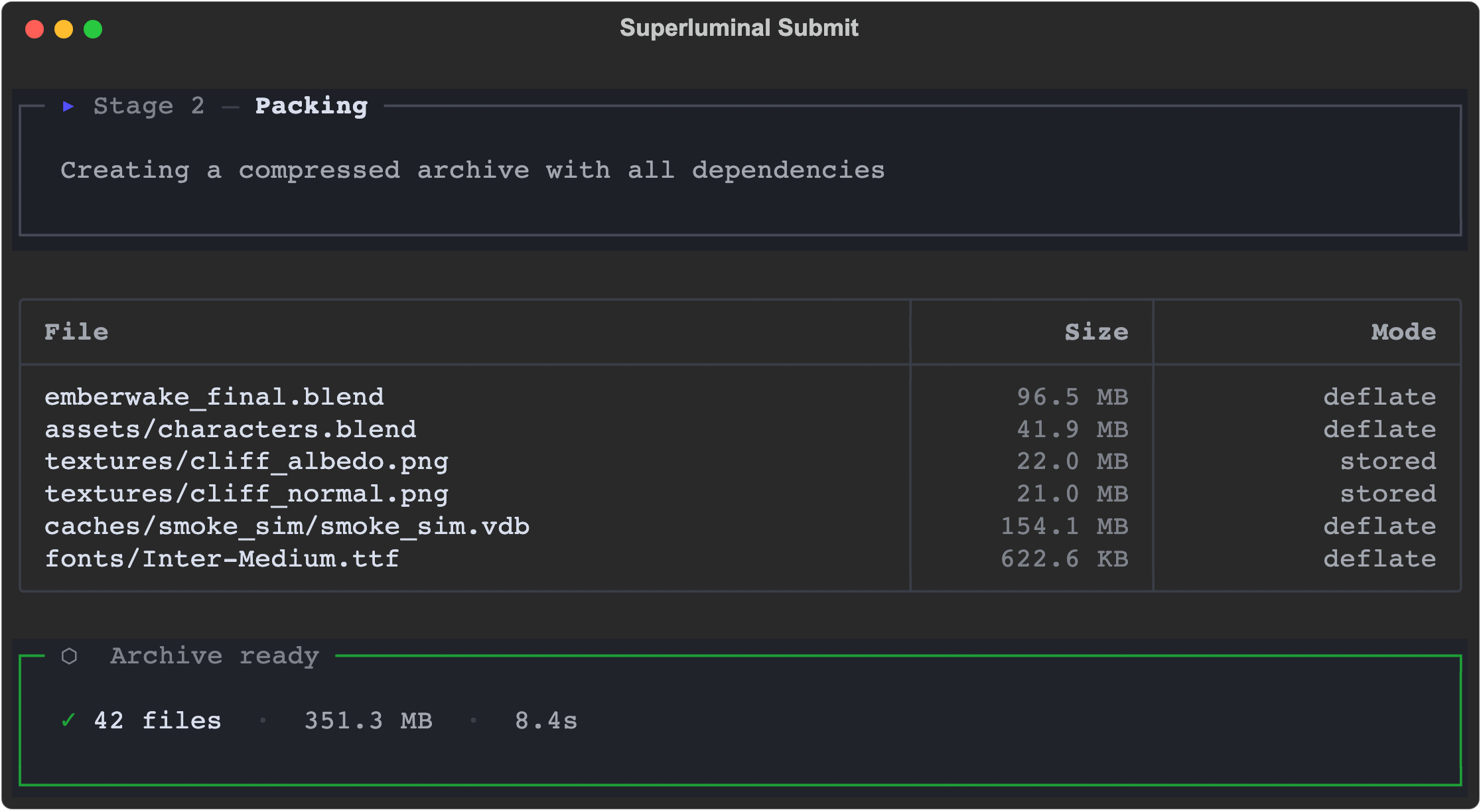
*Already-compressed formats such as PNG are stored without recompression, everything else deflated. The footer totals files, bytes, and elapsed time.*
Stage 3: Uploading
Uploads run in numbered steps: the archive or changed files first, then packaged add-ons, then the manifest. A live progress bar tracks the current transfer.
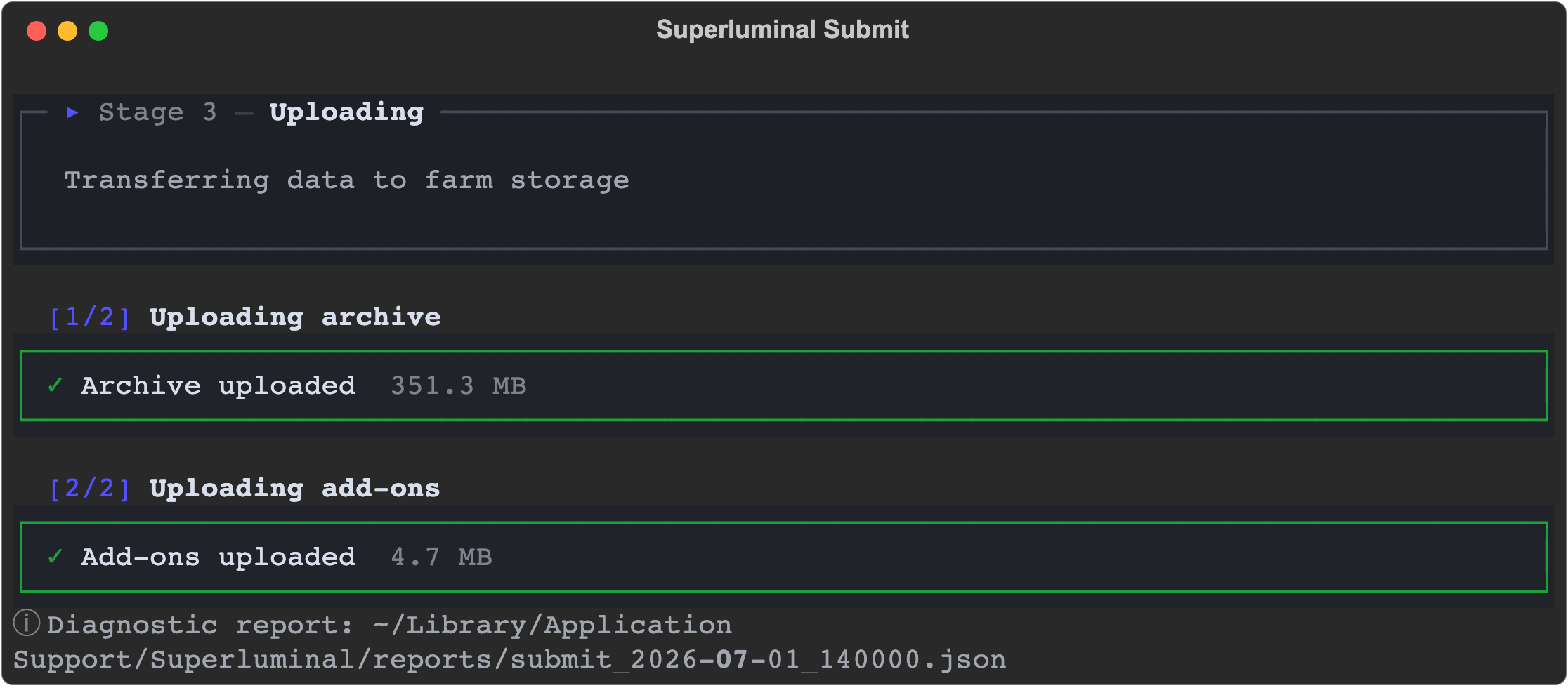
*Each completed step confirms its transferred size. The diagnostic report path prints at the end.*
The worker registers the job only after the upload completes. If the terminal closes before the success screen, the job was not created. See troubleshooting.
The success screen
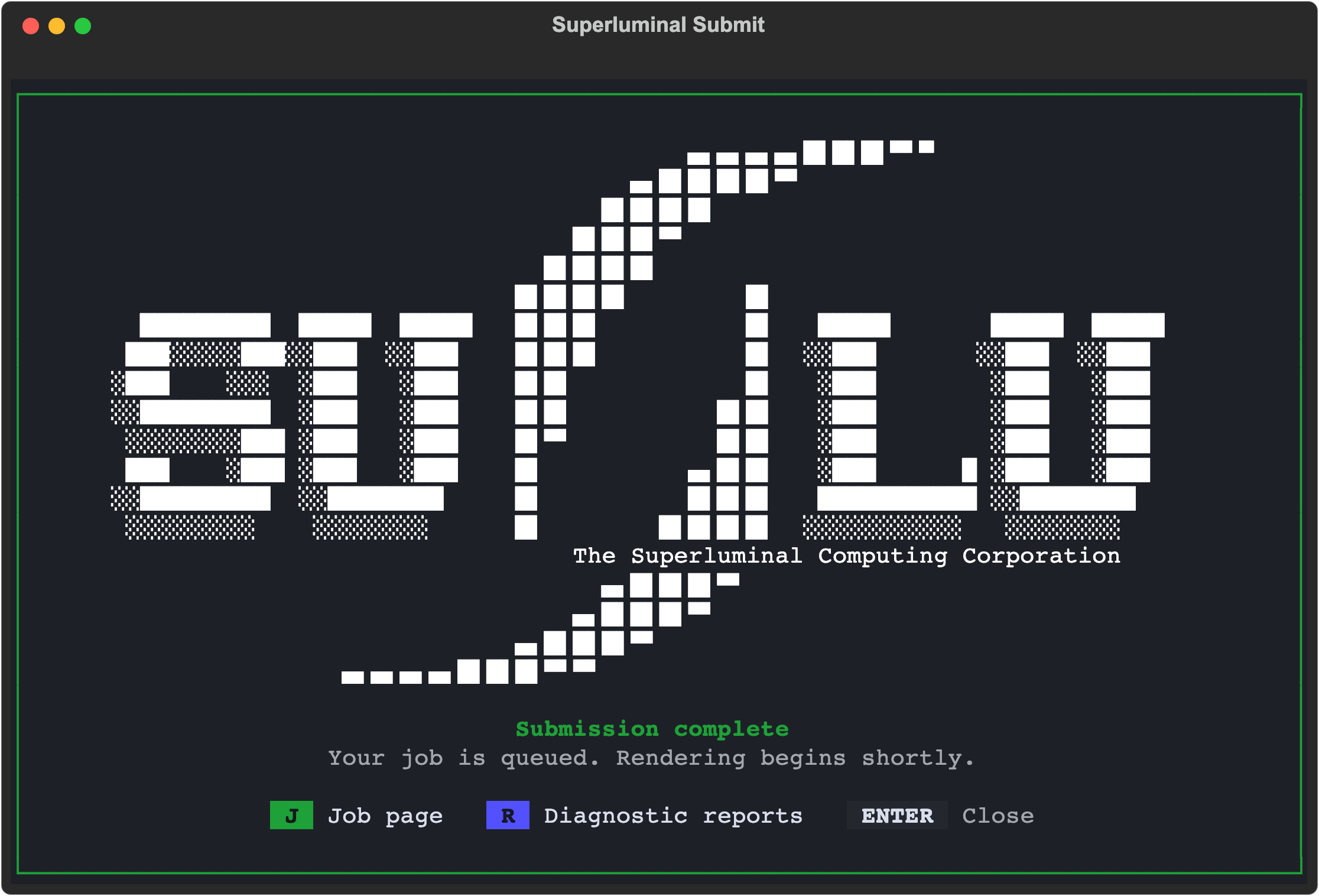
*J opens the job page in your browser, R opens the diagnostic reports folder, and Enter closes the window.*
After the success screen, close the terminal. The job appears in Manage & Download and on the web app's Render Jobs page. Downloads open their own terminal, read the same way. See the download terminal.
When something goes wrong
A blocking problem stops the worker with a red panel naming the cause and the affected paths relative to the project root.
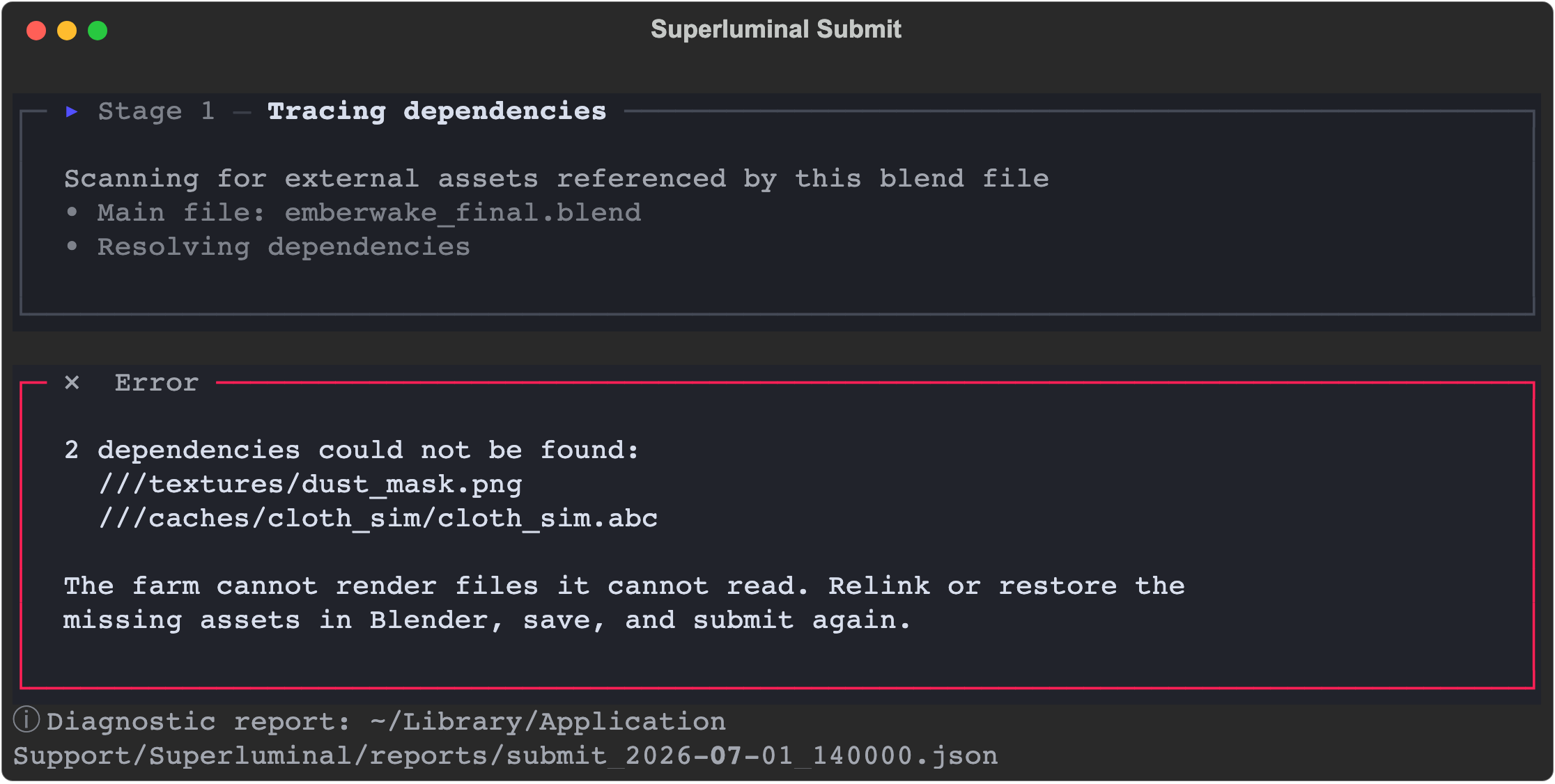
*Blocking errors name the exact files. Fix them in Blender, save, and submit again. Closing the terminal is safe.*
Common stops:
- Missing or unreadable dependencies: relink or restore the files. See dependencies.
- Absolute or cross-drive paths in PROJECT mode: make paths relative under one root, or switch to ZIP. See upload settings.
- Unsaved file, no project, or no connection: the submit buttons stay disabled until you resolve these. See troubleshooting.
Share diagnostics with support
Every submission writes a diagnostic report. The transcript prints its path (Diagnostic report: …), and the success screen's R shortcut opens the reports folder. When a submission misbehaves:
Keep the terminal text
Copy the final error panel, or screenshot the terminal window before closing it.
Grab the diagnostic report
Open the reports folder via the success screen or the printed path. The newest submit_…json file matches your attempt.
Redact secrets
Never share passwords, tokens, session files, or signed URLs. The report avoids credentials, but check anything you copy manually.
Send it with context
Include the report, the organization and project names, the exact time with timezone, and what you expected. See support.
- Configure a job: What each submission field controls before you click Submit.
- Upload settings: ZIP versus PROJECT and the project-root rules tracing enforces.
- Troubleshooting: Focused checks for submissions that stop or never register.