A render fails in the interface before it fails on a GPU. Superluminal shows files, versions, cost, frames, and logs before and while you pay for node time.
Published 2026-07-29 · Updated 2026-08-06
Submission
Inside Blender
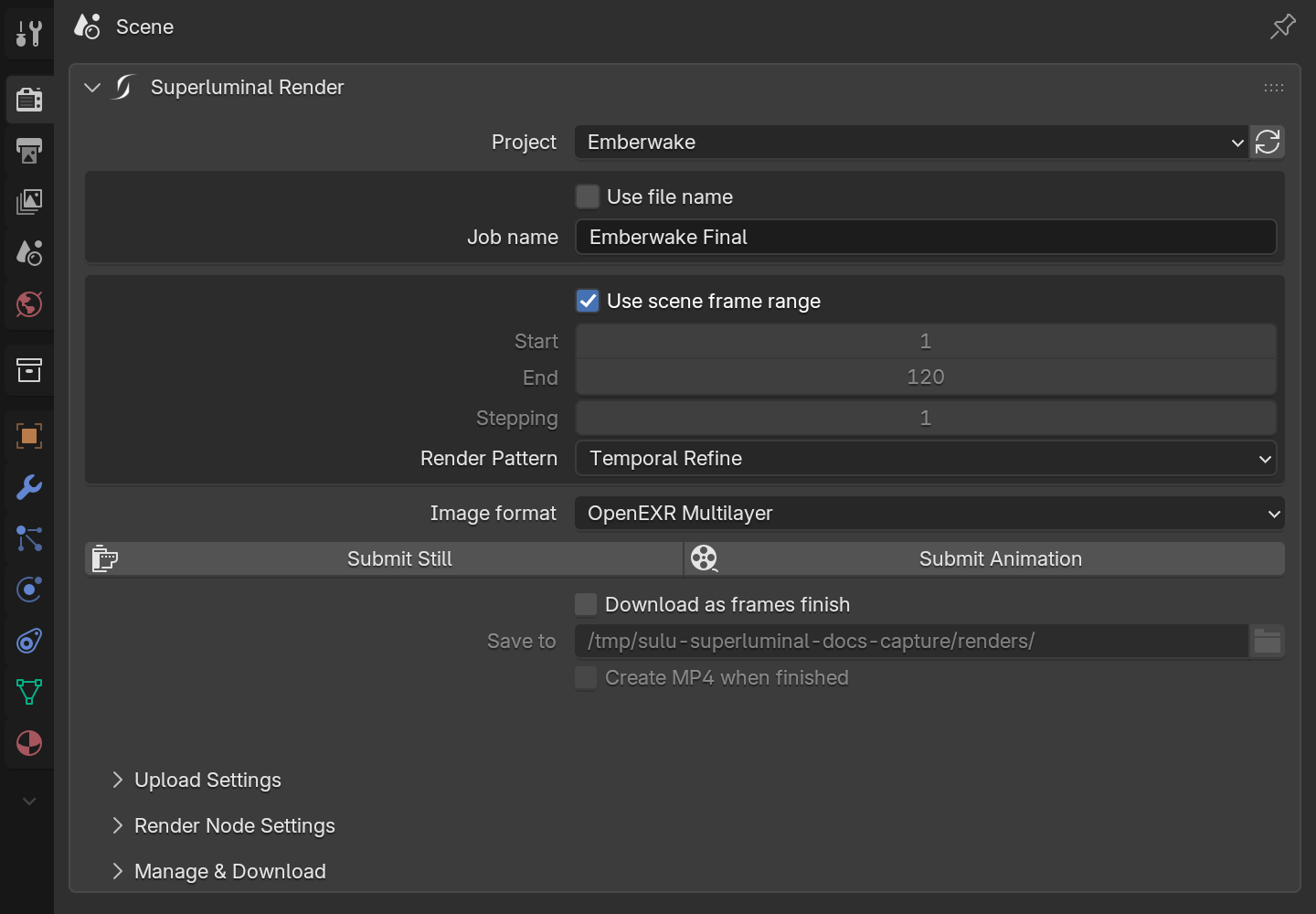
The open scene provides the frame range, engine, output, and render settings.
Dependency feedback
Before upload
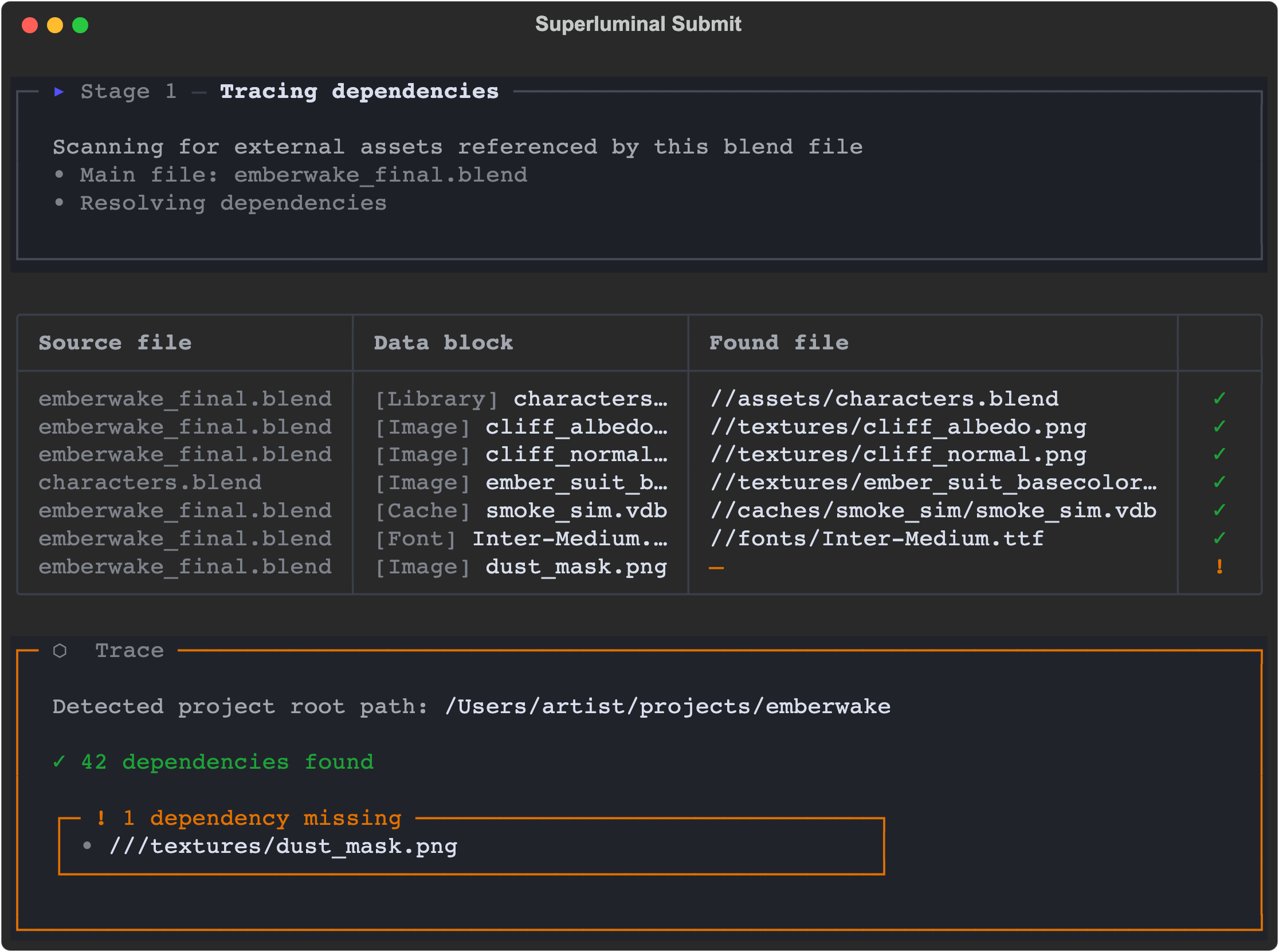
The submission terminal names missing project inputs.
Live job state
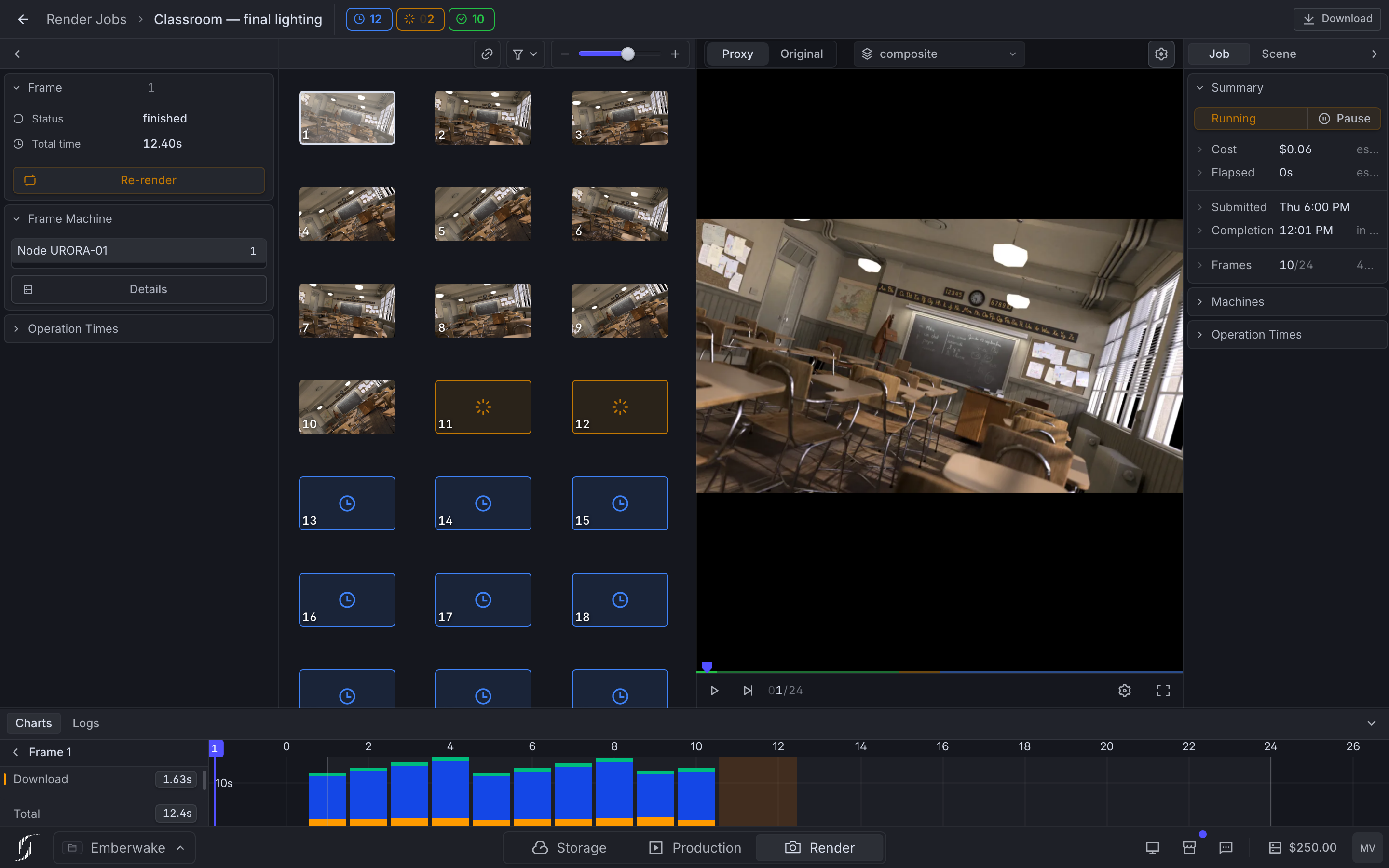
Frames, nodes, cost, logs, and output
The job page keeps these details together.
Benchmark interface set
Nine recorded services
The comparison covers Blender add-ons, browsers, desktop clients, and remote workstations.
A render fails in the interface before it fails on a GPU. A wrong frame range, a missing texture, or an unnoticed queue wastes paid node time, so we treat the interface as part of the render workflow. It must show you each of those facts before and while you pay.
The whole workflow runs through the Blender add-on: configure, submit, and monitor without leaving the scene. The recorded interface comparison shows this workflow beside eight other services.
Superluminal recorded workflow
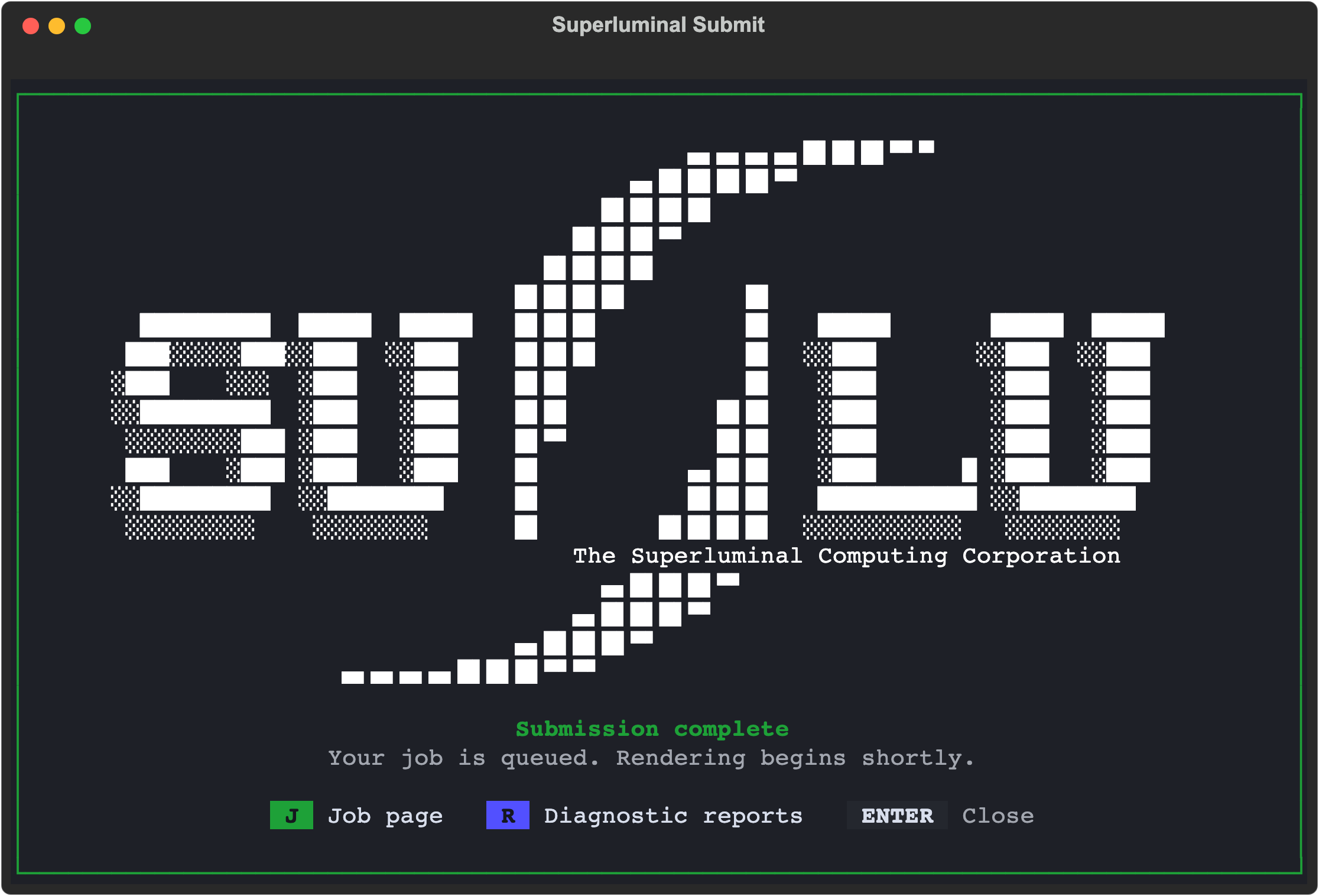
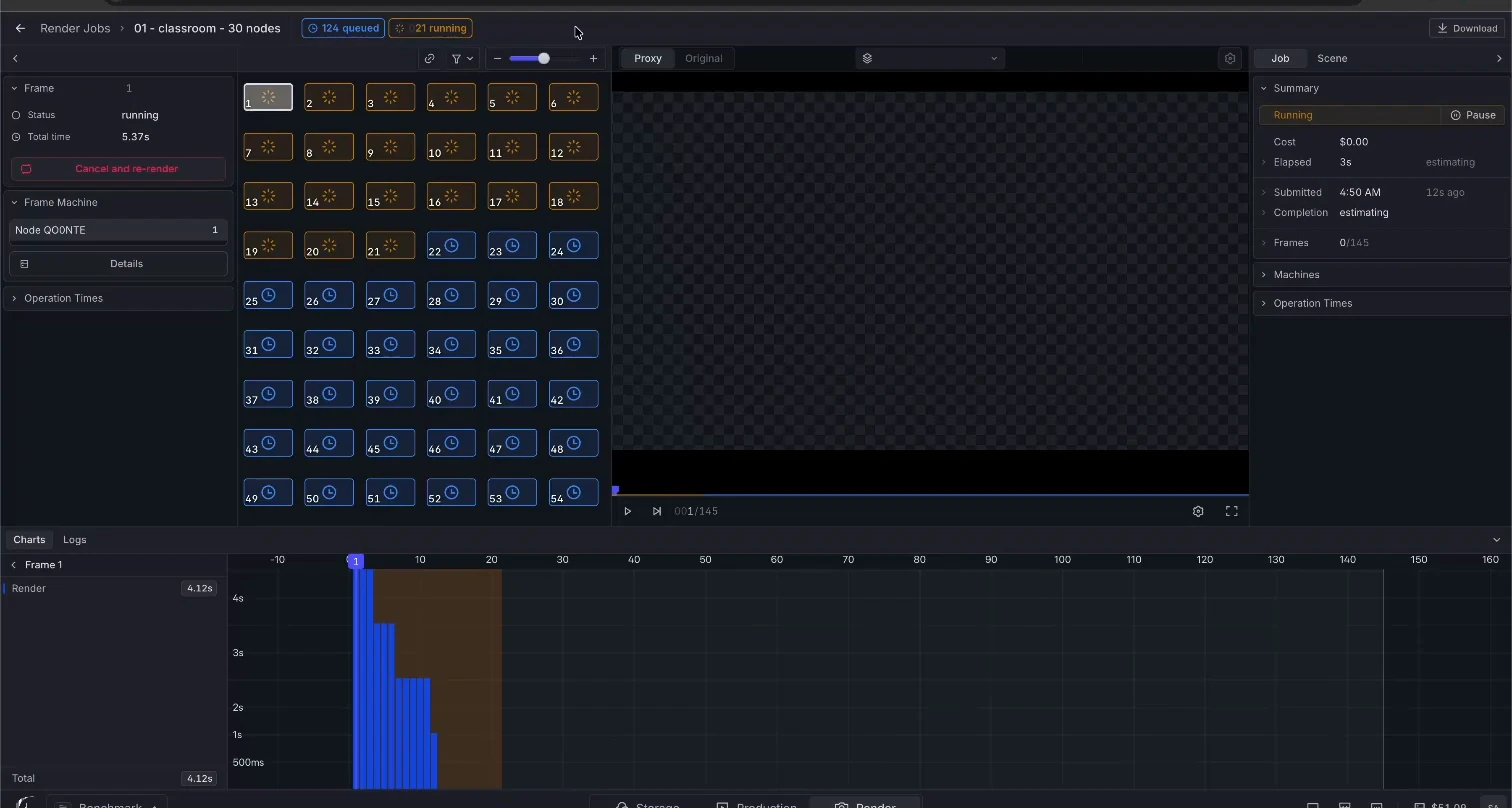
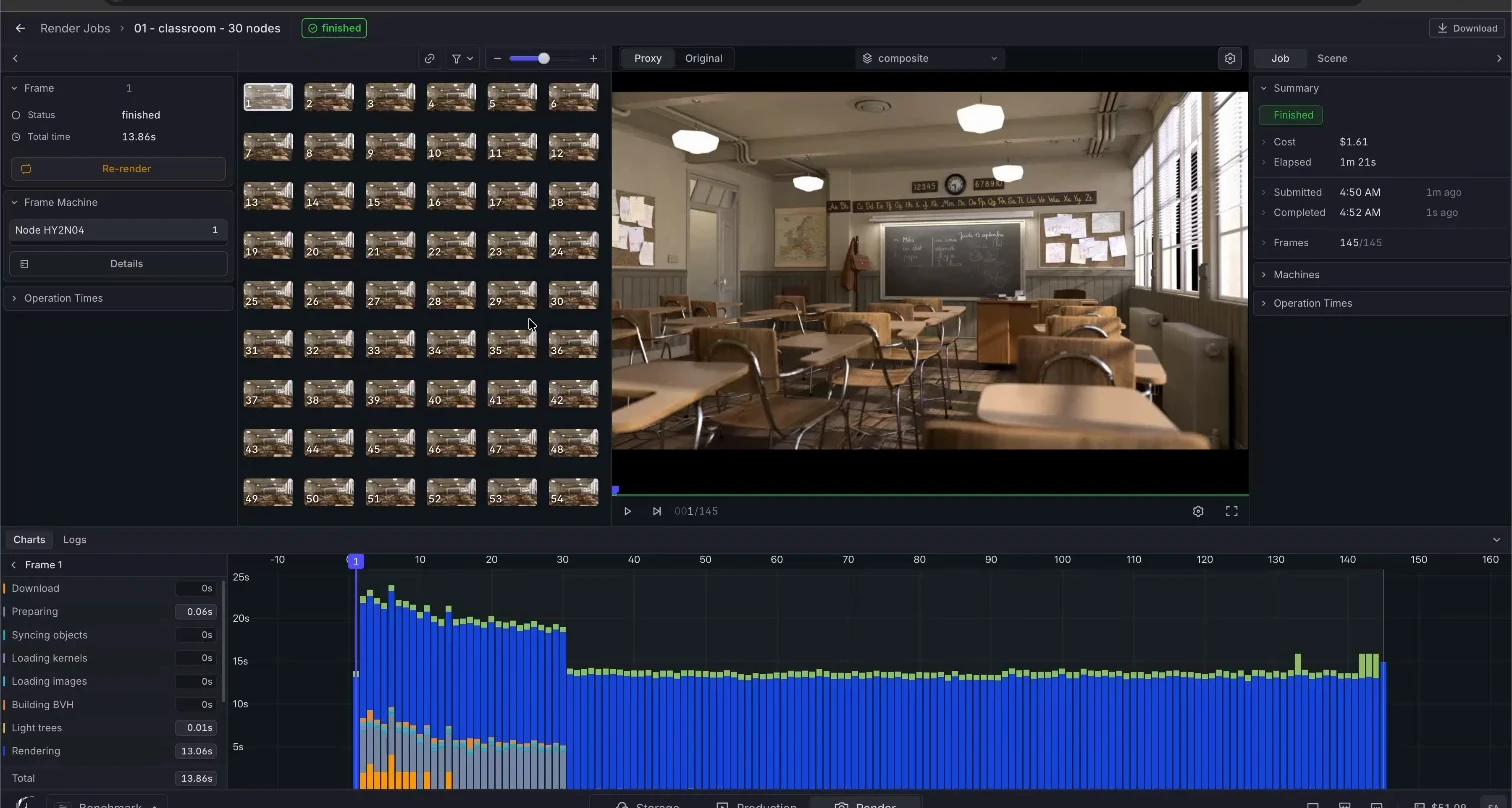
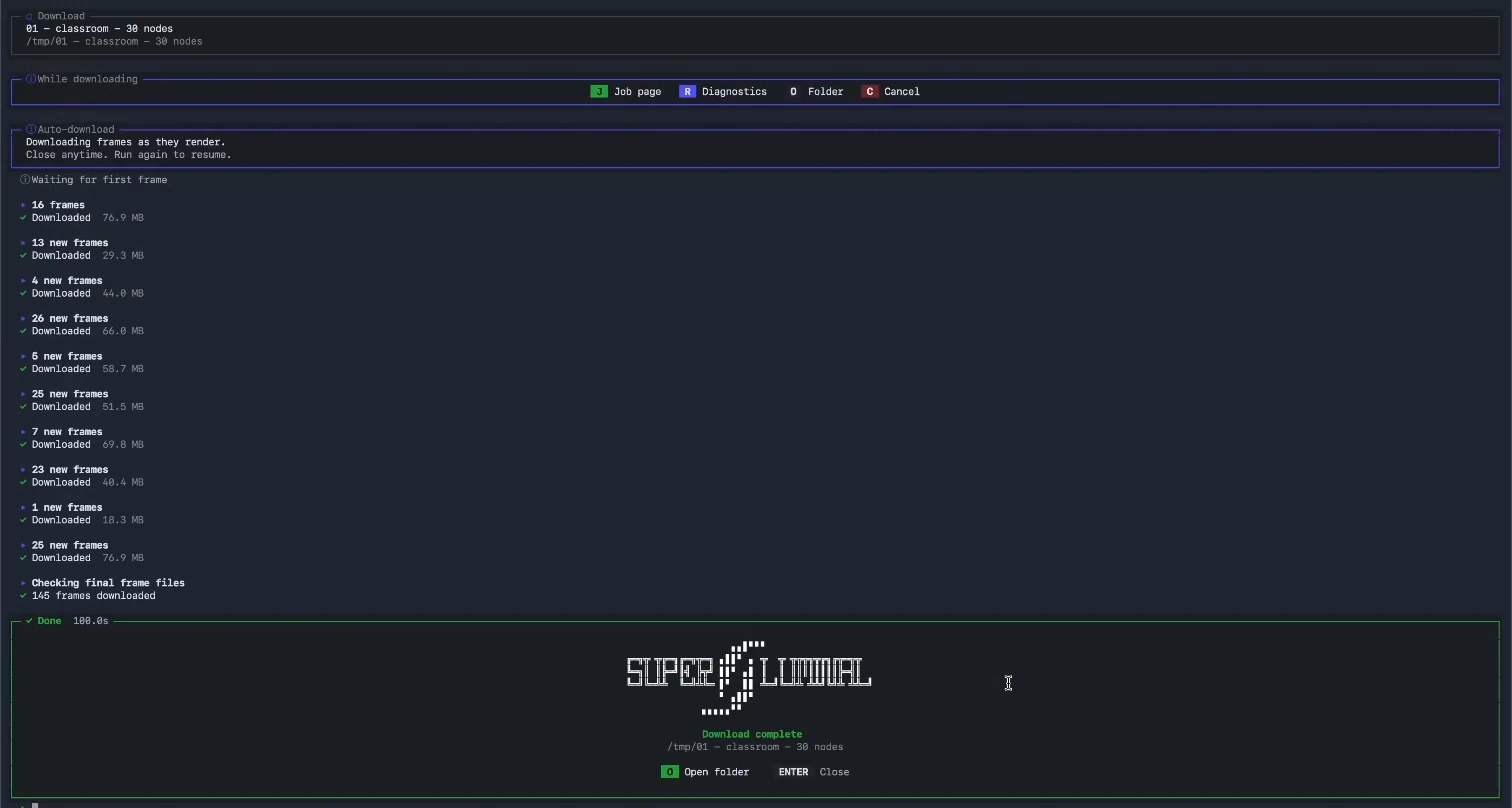
Submission ends in the add-on's terminal: the job is packaged, uploaded, and queued before any browser opens. Open imageActive rendering started after the upload and queue phases in the same recording. Open imageProvider completion showed all 145 Classroom frames finished. Open imageThe final boundary confirms the complete local frame set 106.7 seconds after upload began. Open image
Set up the job in Blender
The Render panel contains project, scene, and output controls. Open image
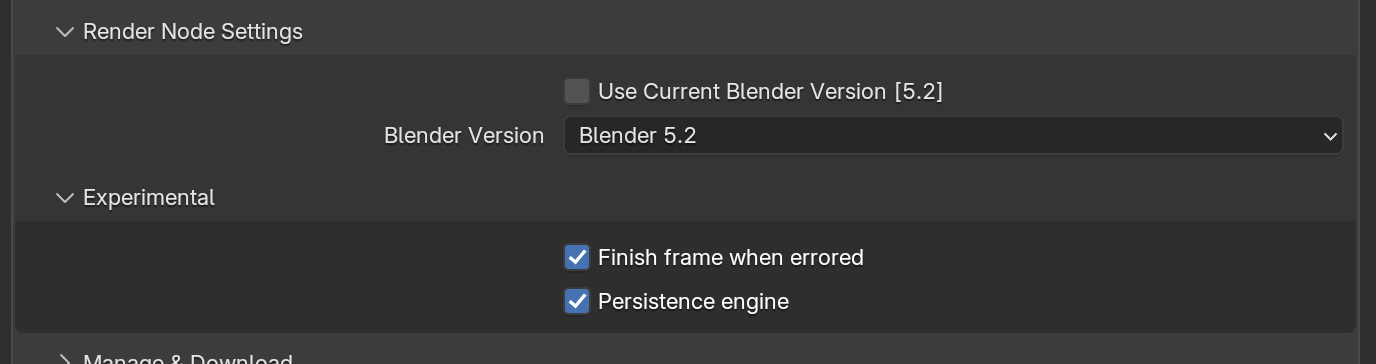
With Use Current Blender Version enabled, Superluminal uses the same version when supported. Otherwise, it selects the closest supported earlier version.
To choose a version yourself, disable the option.
The selected farm version is visible before submission. Open image
Choose the upload method
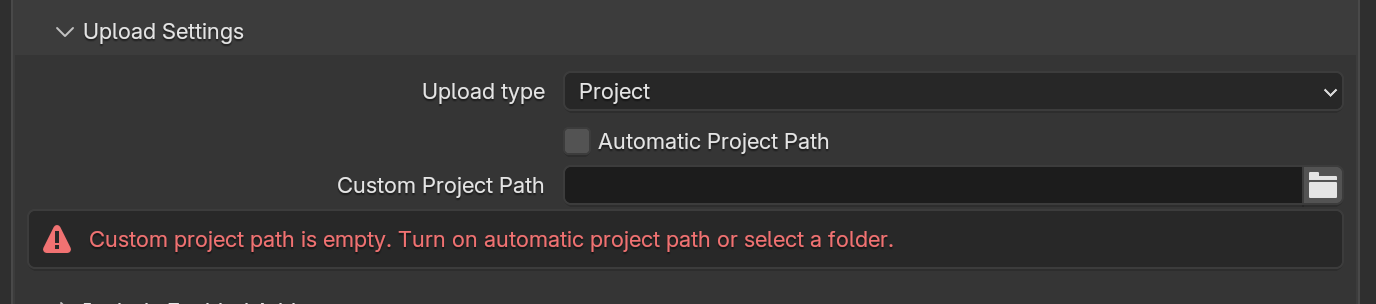
ZIP sends the whole package with each submission. PROJECT sends only new or changed project files after the first upload.
The panel shows the upload mode and required project root. Open image
PROJECT requires one project root. A path outside that root blocks submission until you move the file or switch to ZIP. See Blender project dependencies.
Check add-ons and files
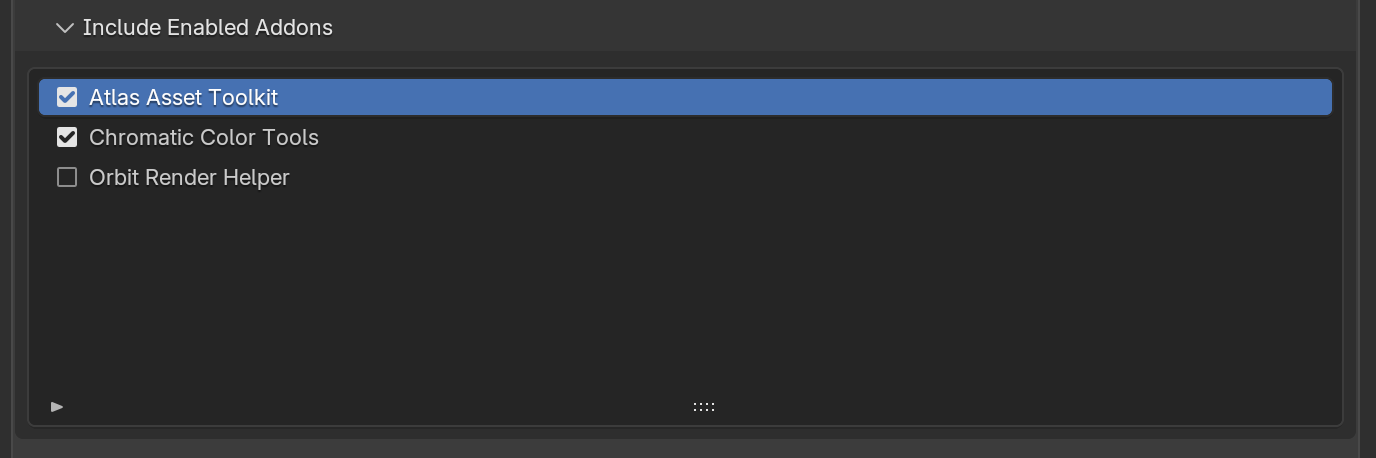
Include Enabled Addons lists non-default add-ons enabled in Blender. Select each add-on that changes the scene or rendered image.
Selected add-ons can be included with the submitted job. Open image
Selected add-ons run on the farm, but you must provide any required license and confirm Linux support.
Before upload, the terminal shows each external file and whether Superluminal can read it.
The terminal identifies the exact missing path before upload. Open image
A missing file causes a warning. An unreadable file or invalid PROJECT path stops submission. The add-on guide covers licenses and system requirements.
The file check cannot find a path that an add-on creates during rendering. Submit one representative frame before a full animation.
Watch the running job
Frames, preview, status, and diagnostics stay on one page. Open image
Select a frame to show its details, preview, operation chart, machine, and log.
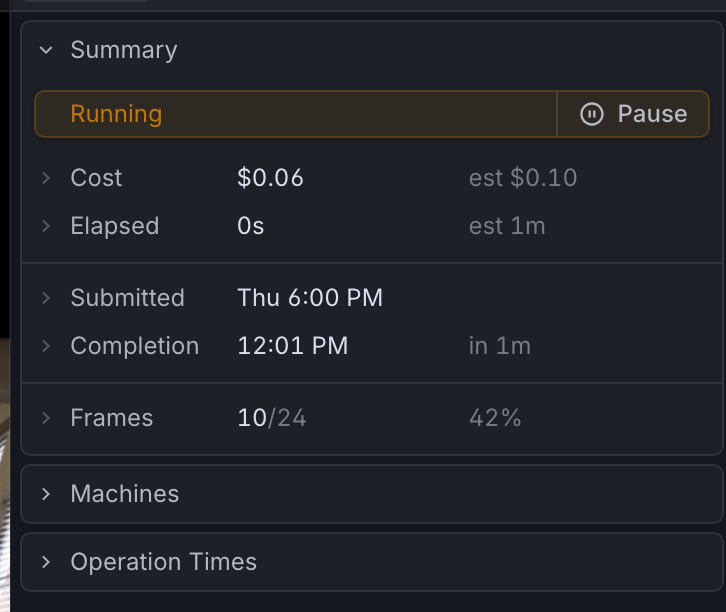
Costs appear in dollars. Time and cost estimates carry an est label.
The Summary card reports the job state, time, and dollar charge. Open image
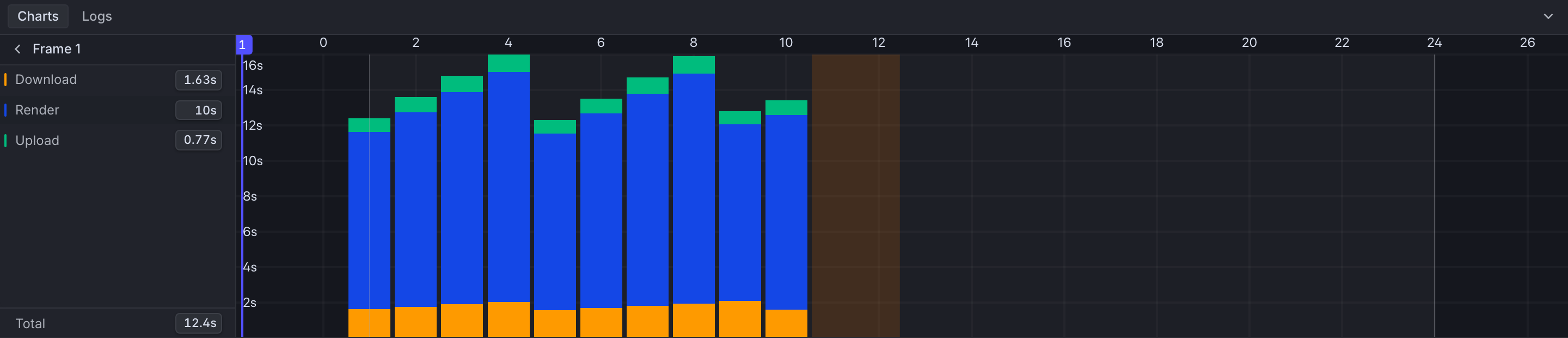
The operations chart keeps render, download, and upload phases distinct. Open image
Enable Download as frames finish before submission. The add-on copies each completed file while later frames render.
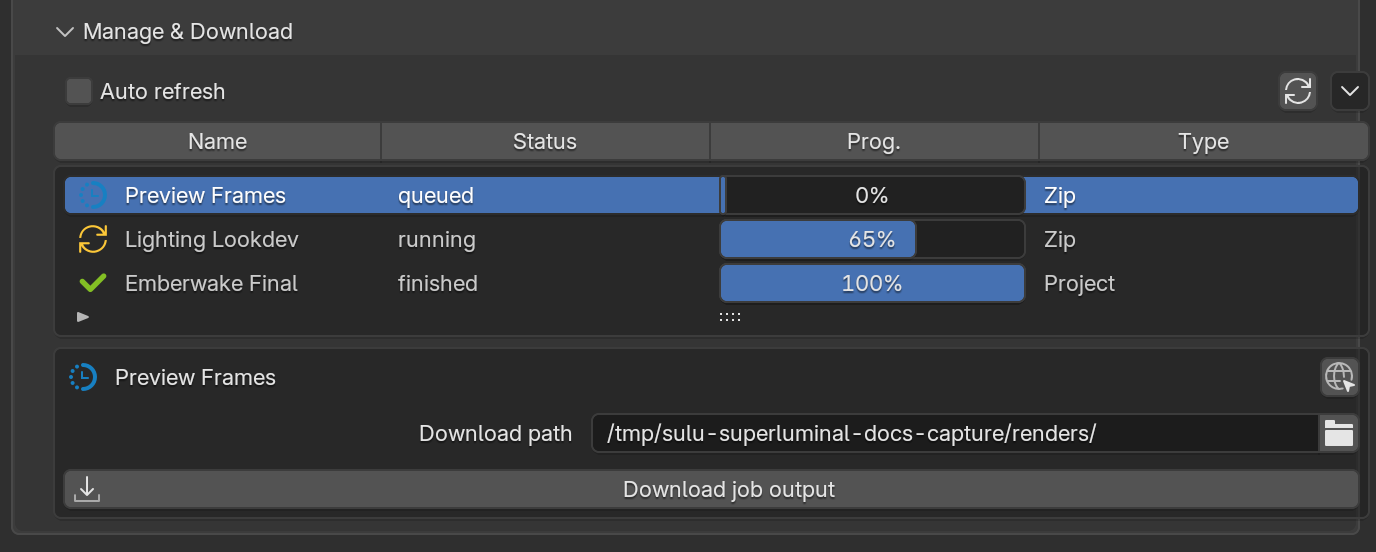
Use Manage & Download to download all output files or resume a stopped download.
Choose a finished job and download its output to a local folder. Open image