Account and organization context
Update profile and sign-in details while keeping organization-scoped projects, capacity, credits, and purchases in the correct context.
Updated 2026-08-04
Your personal account (profile, email, password) is separate from the organization context that owns projects, credits, and capacity. Confusing the two puts billable work in the wrong organization.
Account settings
Profile information is visible to other people:
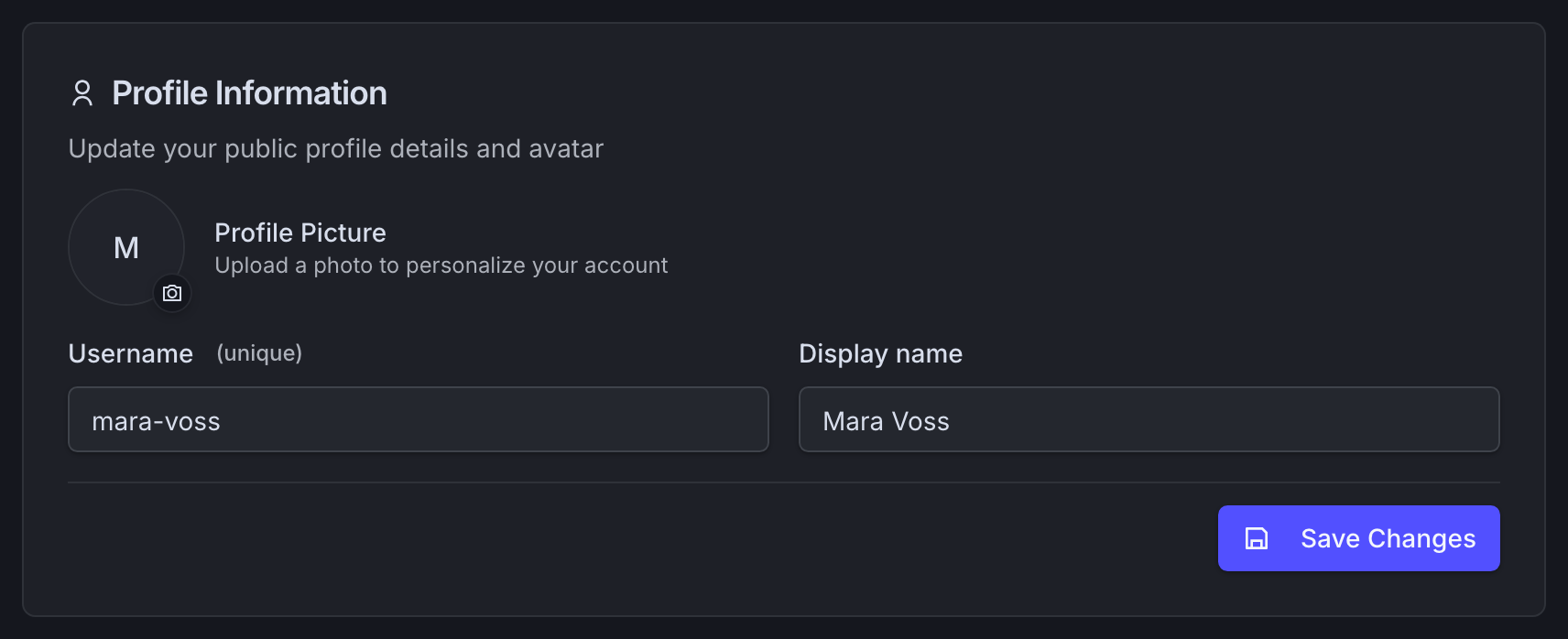
*Username is unique across Superluminal. Display name is what collaborators read.*
Email and password changes are verified rather than applied instantly:
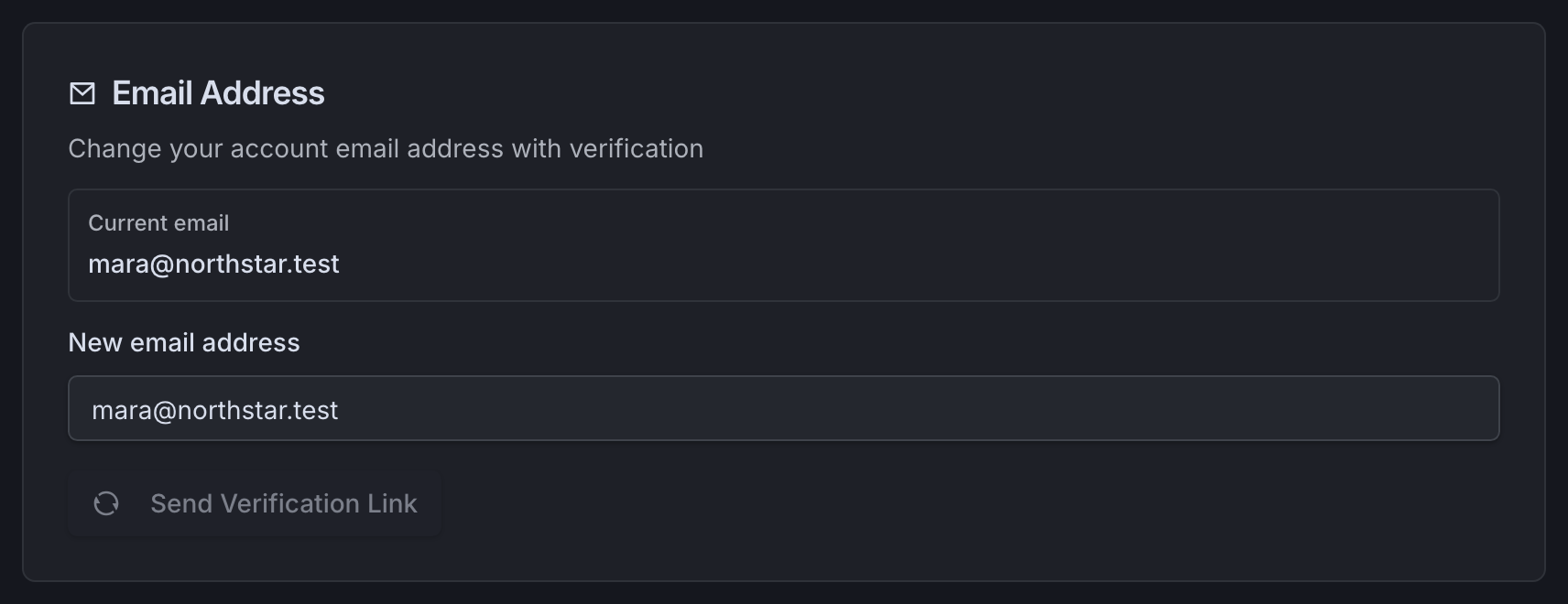
*Changing email starts a confirmation flow. Editing the field alone does not move the account.*
Saving a new password signs you out for a fresh sign-in. An email change completes only after confirmation.
External sign-in providers appear under Connected Accounts:
*Connected providers can sign into this same account. Disconnecting does not delete the account.*
Credentials are personal
Never share a password, access token, session file, or signed link. Support does not need those values to inspect a project or Job ID.
Organization context
Projects, jobs, render capacity, credits, billing settings, and some Market purchases belong to one organization. Opening a project sets the active organization. There is no global organization switcher on every page.
Before an expensive or destructive action, check:
- Is this the intended project and organization?
- Does the displayed balance belong to the render work you are about to submit?
- Is the capacity appropriate for this production?
- Does the Blender project picker show the same project?
- Does a destructive dialog name the expected project or job?
Browser connection from Blender
The add-on's preferred Connect to Superluminal flow authorizes the running Blender instance through the browser. It does not change your browser account or organization context. After connecting, select the intended project in Blender.
Access and shared links
A copied project or job URL grants no access. The recipient must sign in with organization access. If a shared link shows missing or forbidden, check the recipient's access. Do not change the project or job.
- Connect Blender: Use browser authorization and verify the project picker.
- Projects: Understand organization-scoped project actions.
- Billing: Manage capacity and funding in the active context.