Manage jobs and download output
Refresh and inspect project jobs in Blender, open the web detail view, and reliably download completed frames.
Updated 2026-08-04
Expand Manage & Download below the submission controls. It tracks a project's jobs and transfers full output. Use the web app for frame previews, metrics, controls, and logs.
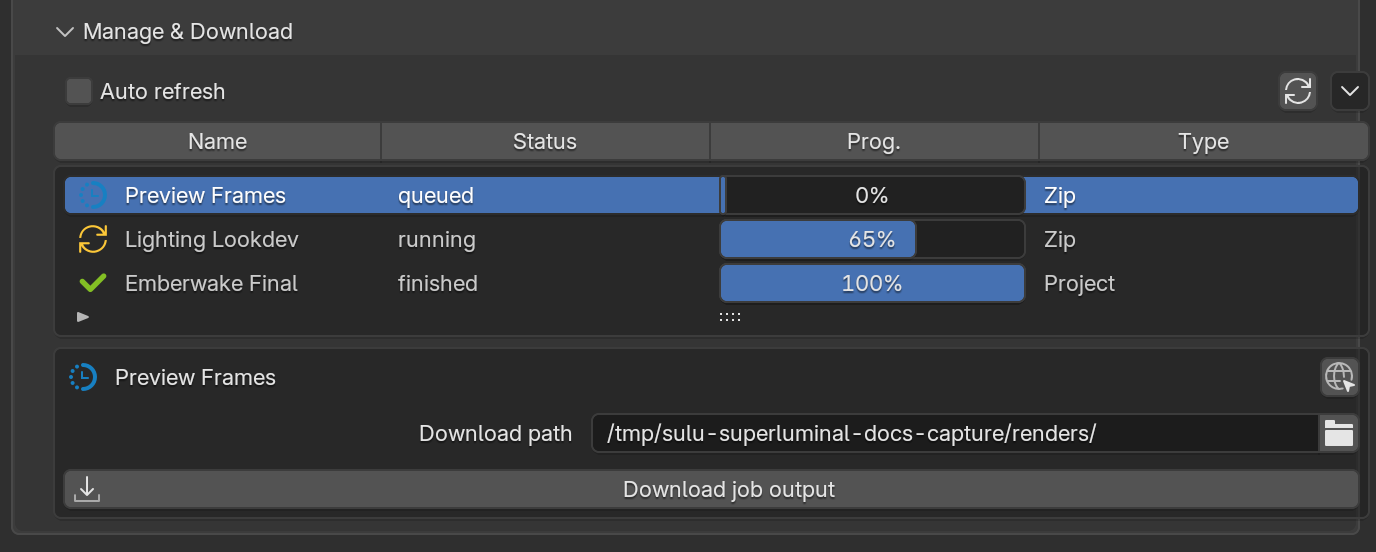
*Select a job, open diagnostics in the browser, and transfer original output to a local folder.*
Refresh and select a job
- Live Job Updates periodically refreshes the selected project's jobs.
- The manual refresh action fetches immediately.
- Click a row to make it the active job for browser and download actions.
- Sort by the supported columns and use the column menu to choose visible details.
Columns include job name, state, submission/start/finish times, frame range and progress, Blender version, and upload type. Visibility depends on the selected columns and the available job data.
Open the full job page
The browser action opens the selected job's web detail page, which provides:
- frame-state grid and selection
- image-sequence playback and render-layer selection
- job, scene, and machine details
- charts and resource measurements
- searchable, filterable, downloadable logs
The web page does not download full output. It directs you back to the add-on.
Download output
Select a job
Choose the intended row and verify its project, name, range, and state.
Choose a local path
Set Download Path to a folder with enough free space and write access.
Start the transfer
Click Download job output. An external terminal shows discovery, polling, and file-transfer progress.
Verify the sequence
Check filenames, expected frames, layers or output-node files, and a few full-resolution images before downstream work.
Downloads can start before the job finishes. The downloader polls and transfers frames as they complete. A later run verifies existing local files, so resuming is fast. Remotely re-rendered frames replace the older local copy.
The download terminal
Downloading runs in its own terminal window, like submission.
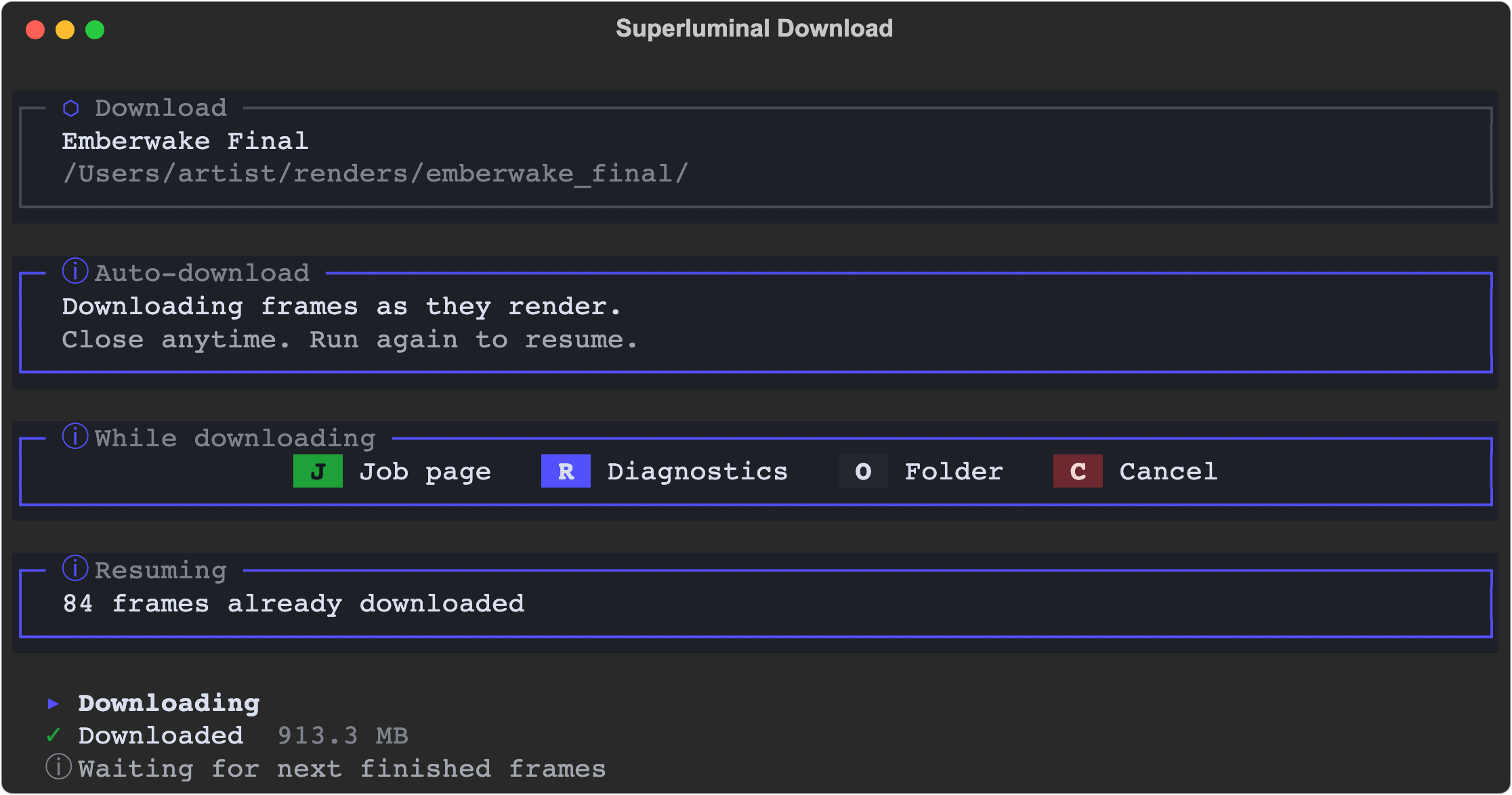
*Auto mode. The header names the job and destination. The transcript tracks each transfer.*
Reading it top to bottom:
- The Download panel confirms the job and destination folder before any bytes move.
- Auto-download appears while the job is still rendering: the worker keeps polling and transfers frames as they finish. Closing the window is safe. A later run resumes where it stopped.
- While downloading lists single-key shortcuts that work the whole time:
| Key | Action |
|---|---|
J | Open the job's web page. |
R | Open the diagnostic reports folder. |
O | Open the destination folder. |
C | Cancel the download safely. |
- Resuming reports frames a previous run already delivered. The downloader verifies them instead of downloading again.
- Each Downloading pass ends with a confirmed transfer size. The worker then waits for the next finished frames.
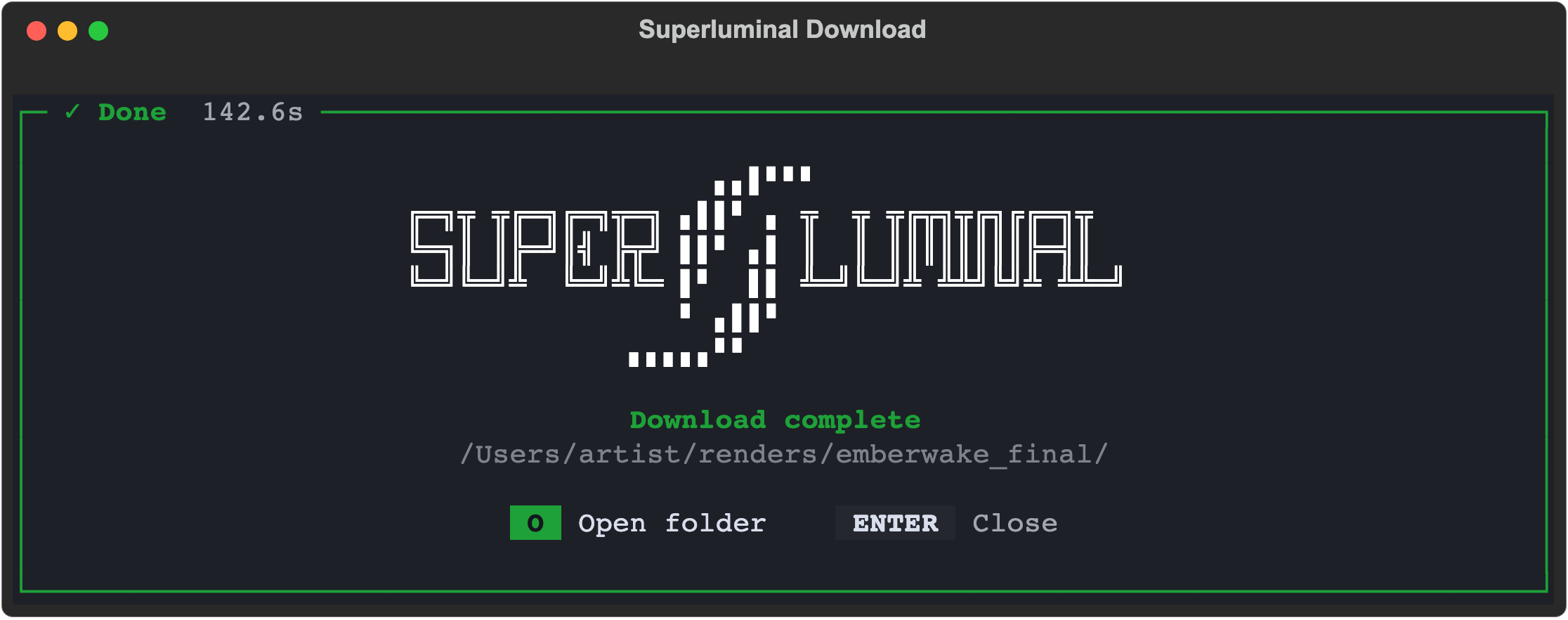
*The completion screen. O opens the destination folder, and Enter closes the window.*
Download promptly
The farm currently keeps render objects for seven days. Keep a verified local or production-storage copy of anything you need beyond that window.
Safe download habits
- Use a dedicated folder per job or deliberate version.
- Keep enough space for multilayer EXR and file-output-node variants, not only the main beauty sequence.
- Do not rename partial files while the downloader is active.
- After a network interruption, run the same download again. Do not start a manual transfer.
- If frames were re-rendered, run the downloader again so it can replace the changed files.
If expected files are missing
- Open the job in the web app and confirm the frame is finished rather than queued, paused, blocked, or errored.
- Check whether the output belongs to a different render layer, view layer, camera, or file-output node.
- Wait briefly. A freshly finished frame can take time to become downloadable, and the downloader polls again on its own.
- Run the same download again so it picks up all completed frames.
- Check local disk space, permissions, security software, and the terminal's final error.
- Job detail reference: Understand the web app's frame, preview, details, chart, and log panels.
- Output and retention: Distinguish previews from full output and plan a durable copy.
- Download troubleshooting: Collect the right diagnostics for interrupted or incomplete transfers.