Browse and manage render jobs
Search, filter, compare, duplicate, pause, resume, and delete jobs from a project's current job browser.
Updated 2026-08-04
The browser loads recent jobs first and offers Load all when a project has more than 100.
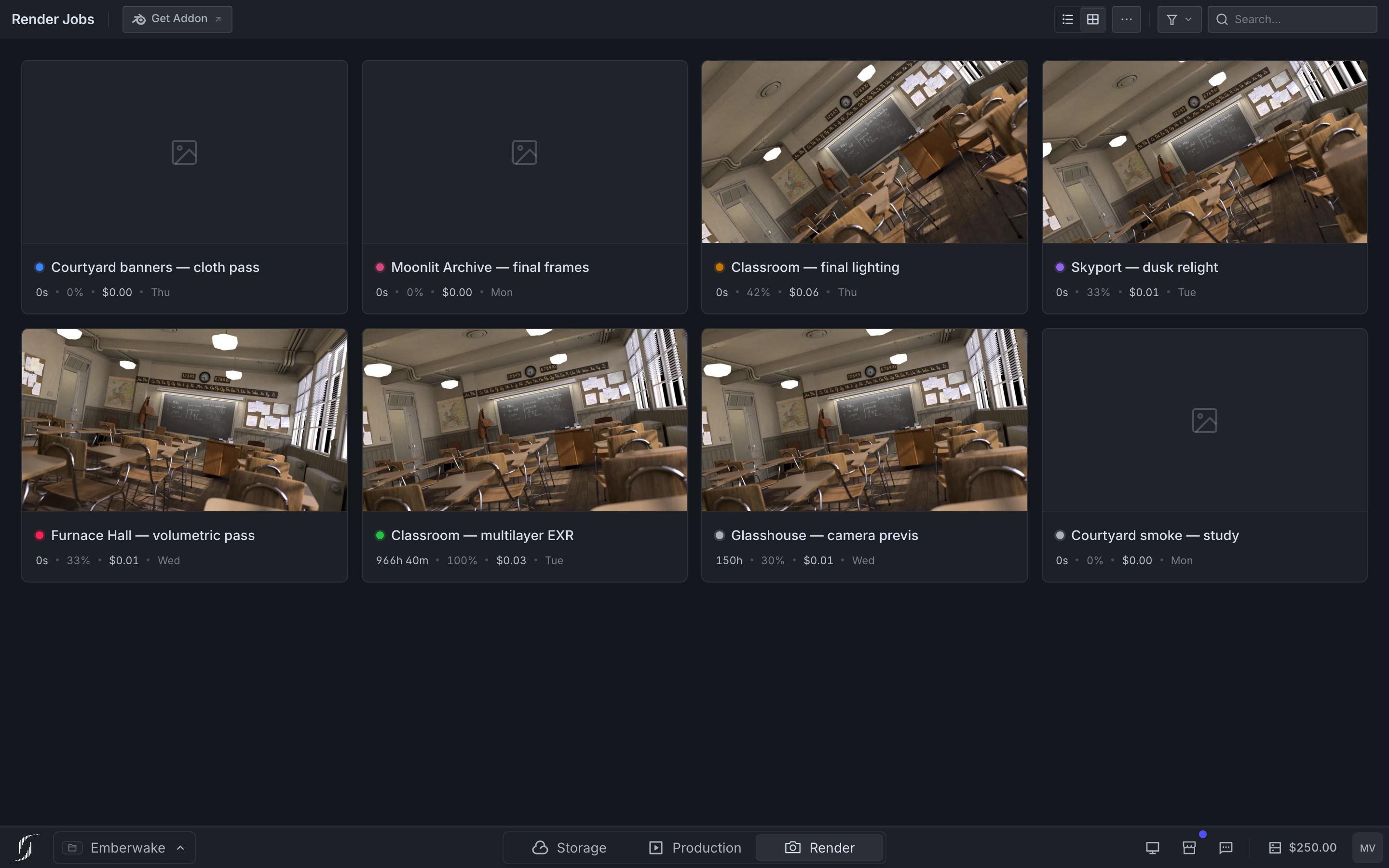
*Search and exact status filters narrow the browser before single or bulk actions.*
Find the right job
- Search by job name and other visible job text.
- Filter by Queued, Running, Blocked: funds, Paused, Error, or Finished.
- Toggle list and grid views.
- Adjust row/card density.
- Choose visible columns for comparison work.
- Sort where the active view exposes sortable columns.
List view
Compare state, progress, timing, Blender version, upload type, and other configured columns across many jobs.
Grid view
Scan thumbnails and recognize shots visually. A thumbnail is a review image, not the full output file.
Status meanings
The status filter lists every state the farm reports.
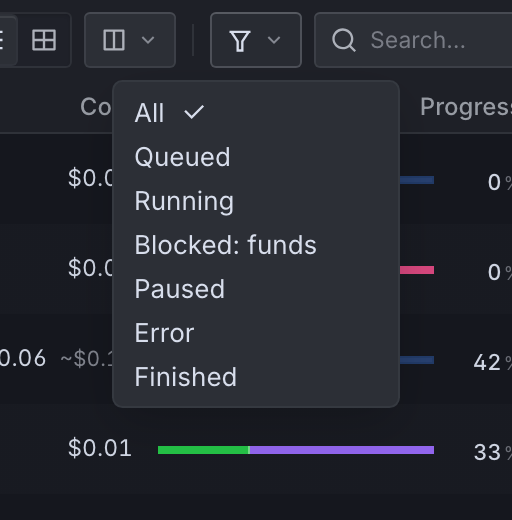
*The status filter next to search, opened. Blocked: funds is a distinct state, not an error.*
| Status | Meaning | Typical next step |
|---|---|---|
| Queued | Work is waiting for render capacity. | Monitor capacity and balance. |
| Running | At least part of the job is actively processing. | Open details for frames, preview, metrics, and logs. |
| Blocked: funds | The organization cannot continue because funding is unavailable. | Add credits. Do not assume active machines stayed alive. |
| Paused | The job is not dispatching work. | Inspect the cause and resume deliberately. |
| Error | Frame or job errors require attention. | Open details, inspect the exact frames and logs, fix, then use Re-render as appropriate. |
| Finished | Requested frame work reached its terminal successful state. | Verify and download output promptly through Blender. |
Single-job actions
The action menu supports context-dependent operations such as:
- open the detail page or a new tab
- copy the job link
- pause or resume
- duplicate
- delete
Duplicate creates a new job from the source job's stored input, captured settings, frame range, and packed add-ons. It does not read the .blend open on your computer. If local files changed since submission, submit again from Blender.
Bulk actions
Selecting multiple jobs reveals the applicable pause, resume, or delete controls. The action applies to every selected job, not only the last row clicked.
Review destructive scope
Changing filters does not always clear the selection. Before you delete, check the selected count and job names, then read the confirmation dialog.
Blocked funds
At zero balance the farm can stop render machines, including machines with active frames. Add credits as soon as a job is blocked, then check job and frame state. Do not assume active frames finished.
- Job details: Open the resizable frame-review and diagnostics workspace.
- Billing: Maintain balance and configure render capacity or auto top-up.
- Download output: Return to the Blender add-on for original files.