Blender add-on
Submit scenes, choose remote render settings, monitor jobs, and download completed output without leaving Blender.
Updated 2026-08-04
The Superluminal add-on submits Blender scenes and downloads full render output. Its panel lives in Render Properties → Superluminal Render.
Two apps, one workflow
Configure, submit, and download in Blender. Monitor and review in the web app.
Panel map
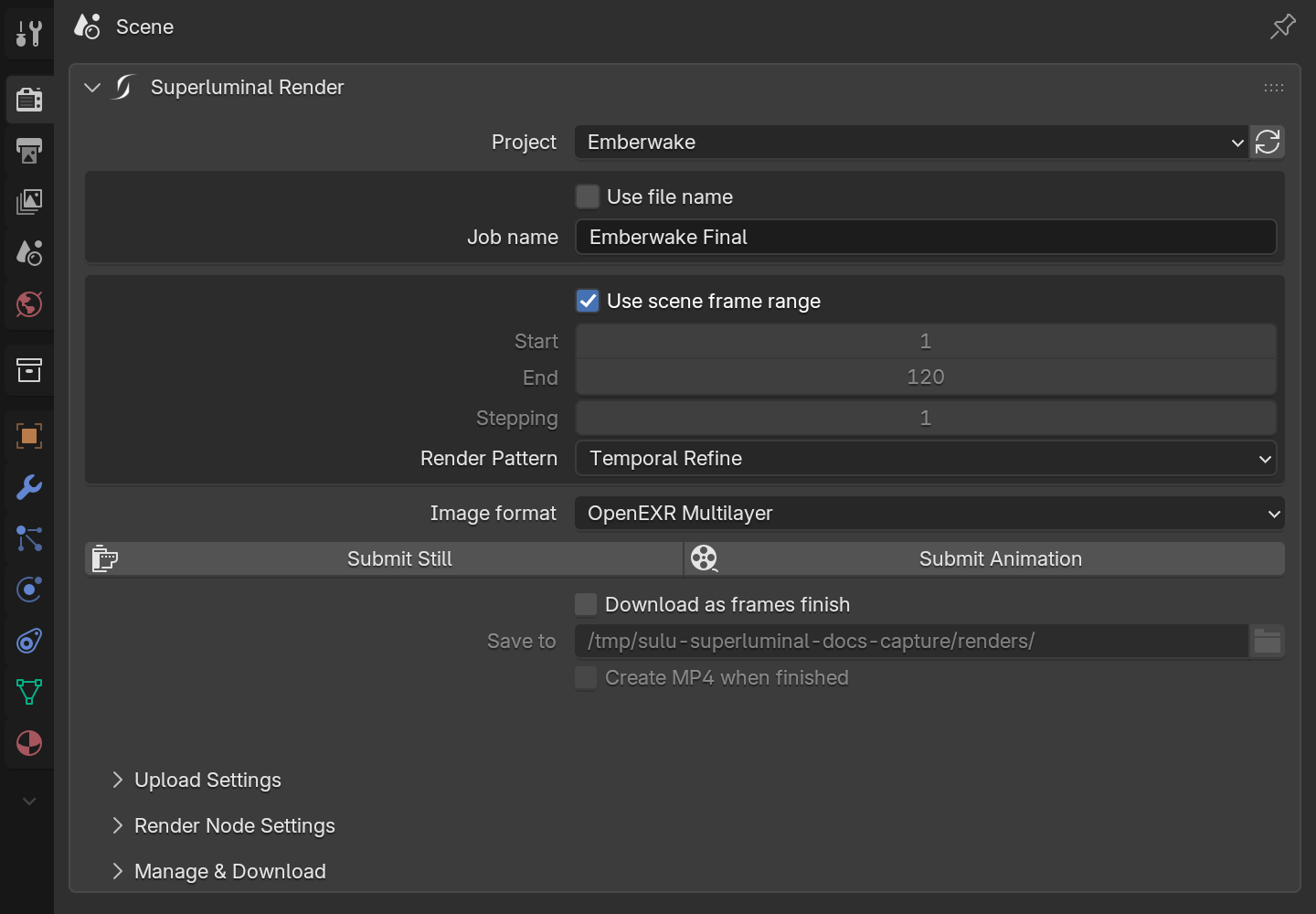
*One panel, with collapsible sections below the submit actions.*
Controls change with connection and project state:
- Connection: browser account connection, password sign-in as a collapsed fallback. → Install and connect
- Project and job: project picker, job name, frame range, render pattern, image format, submit buttons. → Submit a job
- Upload Settings: ZIP or PROJECT mode, project-root controls, path warnings, enabled add-ons to package. → Upload settings and Add-ons and dependencies
- Render Node Settings and Experimental: farm Blender version, error-finish behavior, Persistence Engine. → Render-node settings
- Manage & Download: refresh and filter jobs, open a job in the browser, select a local path, download output. → Manage & Download
Submit opens a terminal window with the submission transcript. The submission terminal guide covers each stage.
Basic workflow
Connect
Choose Connect to Superluminal and complete the browser flow.
Select a project
Choose where the job and reusable project files belong.
Configure
Set naming, frame range, render pattern, image format, upload mode, add-ons, Blender version, and experimental behavior.
Submit
Submit Still renders one chosen frame, Submit Animation the configured range. Let the terminal finish.
Inspect
Select the job in Manage & Download or open its web view.
Download
Choose a local folder and run Download job output.
- First render: The whole loop once, end to end, with one test frame.
- Web app: Where submitted jobs are reviewed: frames, previews, charts, and logs.
- Troubleshooting: Diagnose connection, packaging, registration, render, and download issues.