Render-node and experimental settings
Choose the farm Blender version and understand Finish Frame On Error and the Persistence Engine.
Updated 2026-08-04
Blender version
Automatic selection reads your running Blender major/minor version and picks it when the farm supports it. Otherwise it picks the closest supported version that is not newer and clamps out-of-range versions. Manual choices span Blender 4.0 through 5.2.
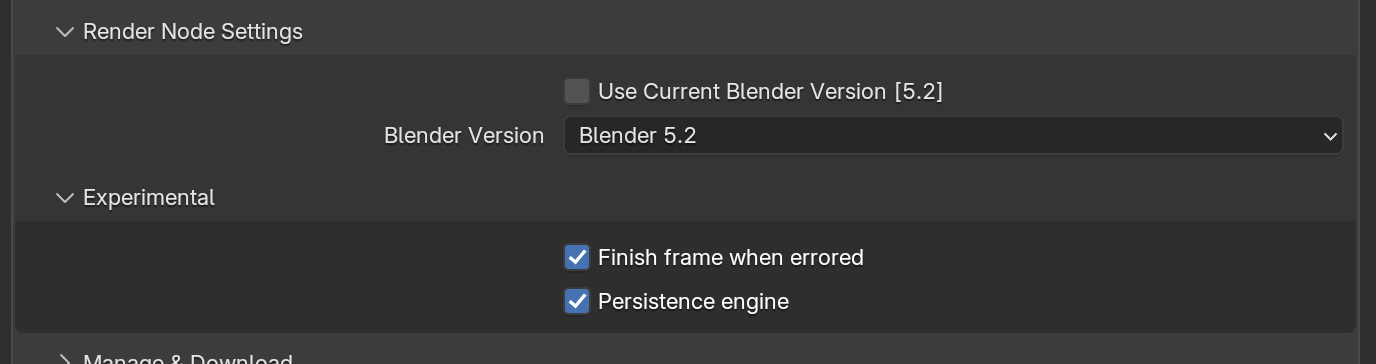
*Local add-on compatibility, farm Blender selection, and experimental execution behavior are separate decisions.*
Disable it to choose manually, useful when a production standardizes on a known farm build. Blender files and features are not generally backward compatible.
Patch versions are not exact farm selectors
The selector targets a major/minor build such as 4.4 or 5.2. Test the scene remotely whenever patch-level behavior, add-ons, or newly introduced Blender features matter.
Finish Frame On Error
Default: off.
When enabled, the farm can mark a frame finished if a usable image exists despite a later Blender error. This covers renders that save correctly but fail during cleanup.
Enable it only after confirming all of the following:
- Blender wrote the expected output file completely
- the recurring error happens after the output save
- previews and downloaded output are correct
- suppressing the error will not hide an incomplete layer, output node, or side effect
Otherwise keep it off so errors remain visible.
Persistence Engine
Default: on.
The Persistence Engine keeps a Blender process alive between frames, skipping repeated startup and scene-build cost. It helps most when scene setup is long relative to render time.
Persistence can expose scene or add-on behavior that assumes a fresh process per frame. If frames differ from isolated local renders, submit a small comparison with Persistence disabled.
Controlled comparison
Choose a short range
Use frames that exercise animation, caches, handlers, and render-time add-ons.
Hold other settings constant
Use the same source files, Blender version, upload mode, image format, and capacity.
Compare enabled and disabled
Run one job with Persistence on and one with it off.
Inspect output and timing
Compare full downloaded frames first, then machine and operation timings in the web job page.
No universal speed multiplier
Scene load, geometry preparation, render time, output size, and add-on behavior vary widely. Measure your own representative scene.
- Job details: Compare machines, render time, and other operation timings.
- Troubleshoot mismatches: Isolate version and persistence differences with a small test.