Blender render engine compatibility
By Superluminal Engineering
See how Superluminal carries Cycles, EEVEE Next, Workbench, render settings, and output formats from Blender to the farm.
Published 2026-07-29 · Updated 2026-07-29
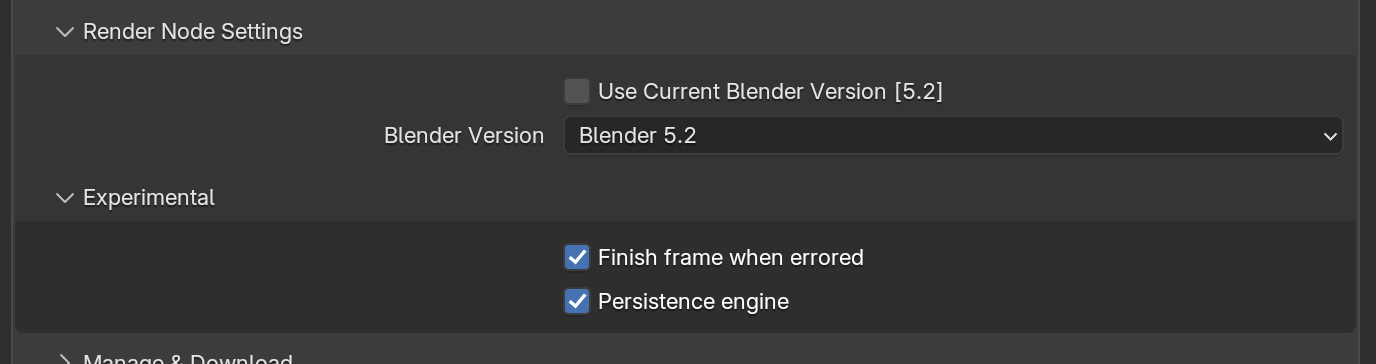
Superluminal carries the active Blender render engine and engine-aware settings into the job. The current settings path knows about Cycles, EEVEE Next, and Blender Workbench, with dedicated groups for Cycles and EEVEE. On the worker, the engine is selected before engine-specific values are applied.
Exact compatibility still depends on the Blender patch, device, passes, compositor, denoiser, color configuration, add-ons, and output format. Test a representative frame with the same settings you will use in production.
Engine status matrix
| Engine | Job support | Settings coverage | Current status |
|---|---|---|---|
Cycles (CYCLES) | Engine selected with the job | Cycles and view-layer Cycles groups | Available for scene testing |
EEVEE Next (BLENDER_EEVEE_NEXT) | Engine selected with the job | EEVEE group | Available for scene testing |
Workbench (BLENDER_WORKBENCH) | Engine identifier recognized | Built-in identifier | Listed; test before production |
The distinction matters. An engine identifier can travel correctly through a job while an individual feature still depends on the exact Blender patch, device, build options, scene state, or external add-on.
Blender render engine support
Engine selection and settings travel with the submitted Blender job.
| Criterion | Submission transport | Settings schema | Full project run | Status |
|---|---|---|---|---|
| Cycles | Supported | Engine-specific settings | Test with your scene | Supported |
| EEVEE Next | Supported | Engine-specific settings | Test with your scene | Supported |
| Workbench | Enumerated | Built-in identifier | Test with your scene | Selectable |
How engine settings travel
At submission time, the add-on reads the active scene's engine and normalizes the identifier. It also creates a guarded, JSON-safe description of editable render settings and a current-value snapshot. The schema walks general render settings, output settings, engine-specific settings, view-layer settings, and color-management groups. Read-only, hidden, unsupported pointer, and non-serializable values are not blindly copied.
The worker receives the selected engine and scene metadata. Its override sequence selects the render engine before applying settings that only exist after that engine is active. This order avoids treating a Cycles property as if it belonged to EEVEE, or applying an EEVEE property while another engine is selected.
This is more precise than merely invoking Blender with a file, but the complete scene is larger than any settings summary. A linked library, driver, script, add-on, compositor setup, or custom render engine can alter behavior outside the captured groups. The original .blend remains the source of truth.
Output choices
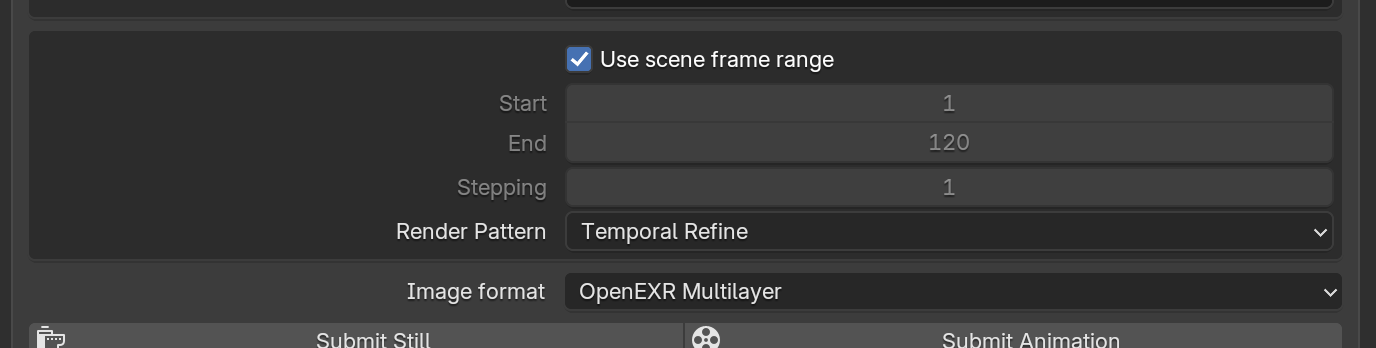
The add-on currently offers seven output choices:
| Choice | Meaning |
|---|---|
| Scene Image Format | Preserve the scene's configured format |
| PNG | Explicit PNG preset |
| JPEG | Explicit JPEG preset |
| OpenEXR | Explicit EXR preset |
| OpenEXR Lossy | Explicit lossy EXR preset |
| OpenEXR Multilayer | Explicit multilayer EXR preset |
| OpenEXR Multilayer Lossy | Explicit lossy multilayer EXR preset |
A selectable output can still contain scene-specific surprises in channels, layers, compression, metadata, or the downstream pipeline. Inspect original EXR files—not screenshots—when passes and color matter. The local and farm output guide covers a deeper comparison.
Output formats available in the add-on
Keep the scene default or choose a dedicated image and EXR preset.
| Criterion | Selectable | Preserves scene choice | Public output artifact | Status |
|---|---|---|---|---|
| Scene default | Yes | Yes | Test with your scene | Supported |
| PNG / JPEG | Yes | No, explicit preset | Test with your scene | Supported |
| OpenEXR | Yes | No, explicit preset | Test with your scene | Supported |
| Multilayer OpenEXR | Yes | No, explicit preset | Test with your scene | Supported |
| Lossy EXR variants | Yes | No, explicit preset | Test with your scene | Supported |
What to test by engine
Cycles
Cycles tests should cover CPU/GPU device selection, samples, adaptive sampling where used, denoising, persistent data, motion blur, displacement, volumes, hair, Geometry Nodes, OSL where relevant, compositor output, multilayer EXR, and Cryptomatte.
EEVEE Next
EEVEE fixtures should cover shadowing, volumes, motion blur, temporal behavior, render passes, compositor output, color management, and scenes where setup overhead dominates short frame renders. Because EEVEE frames can be fast, end-to-end tests must separate process startup, scene load, output write, postprocessing, and delivery from the artistic render.
Workbench and custom engines
Workbench is available in the settings schema but has not completed the same public test. Custom engines need their own installation, license, registration, settings, and output test; appearing as a Blender RenderEngine is not enough.
Color and denoising caveats
Two images can look alike in a browser while their original pixel data differs. The comparison must freeze the exact Blender build, OCIO configuration, display/view transform, look, exposure, gamma, engine, device, samples, denoiser, passes, EXR format, and compression. A bit-identical result is different from a tolerance-bound result, and lossy output cannot be judged with an exact-byte rule.
For this reason, the current engine matrix avoids “pixel perfect” and “identical to local.” Those phrases become valid only for the exact cases that pass a declared method.
Engine and settings path
- Scene · Read active engine and settings
The add-on records the scene engine and builds a guarded JSON-safe schema of render, engine, view-layer, and color-management settings.
- Submit · Carry normalized engine identity
The job transports the normalized engine identity and a settings snapshot.
- Worker · Apply engine before dependent settings
The worker selects the engine before applying settings that only exist for that engine.
- Output · Check final frames and passes
Open the original output and confirm color, layers, metadata, and compositing behavior for the project.
Practical preparation
Before a production submission, match the Blender minor using the version inventory, render representative frames locally, retain original outputs, and record the active engine and device. Verify add-ons separately, especially if they register nodes, engines, or handlers. For multilayer work, inspect layer names and data rather than only the Combined preview.
The forthcoming Blender 5.1 benchmark uses a CC0 scene and follows the workflow from submission to downloadable output. Until that work is complete, use this page as a preparation guide and test your own scene.