Configure and submit a job
Configure job naming, frames, render order, image output, and the still or animation submission flow.
Updated 2026-08-04
The main panel holds the job settings. The scene still controls the render engine, samples, resolution, camera, view layers, and color management. With Scene Image Format selected, it also controls the output format.
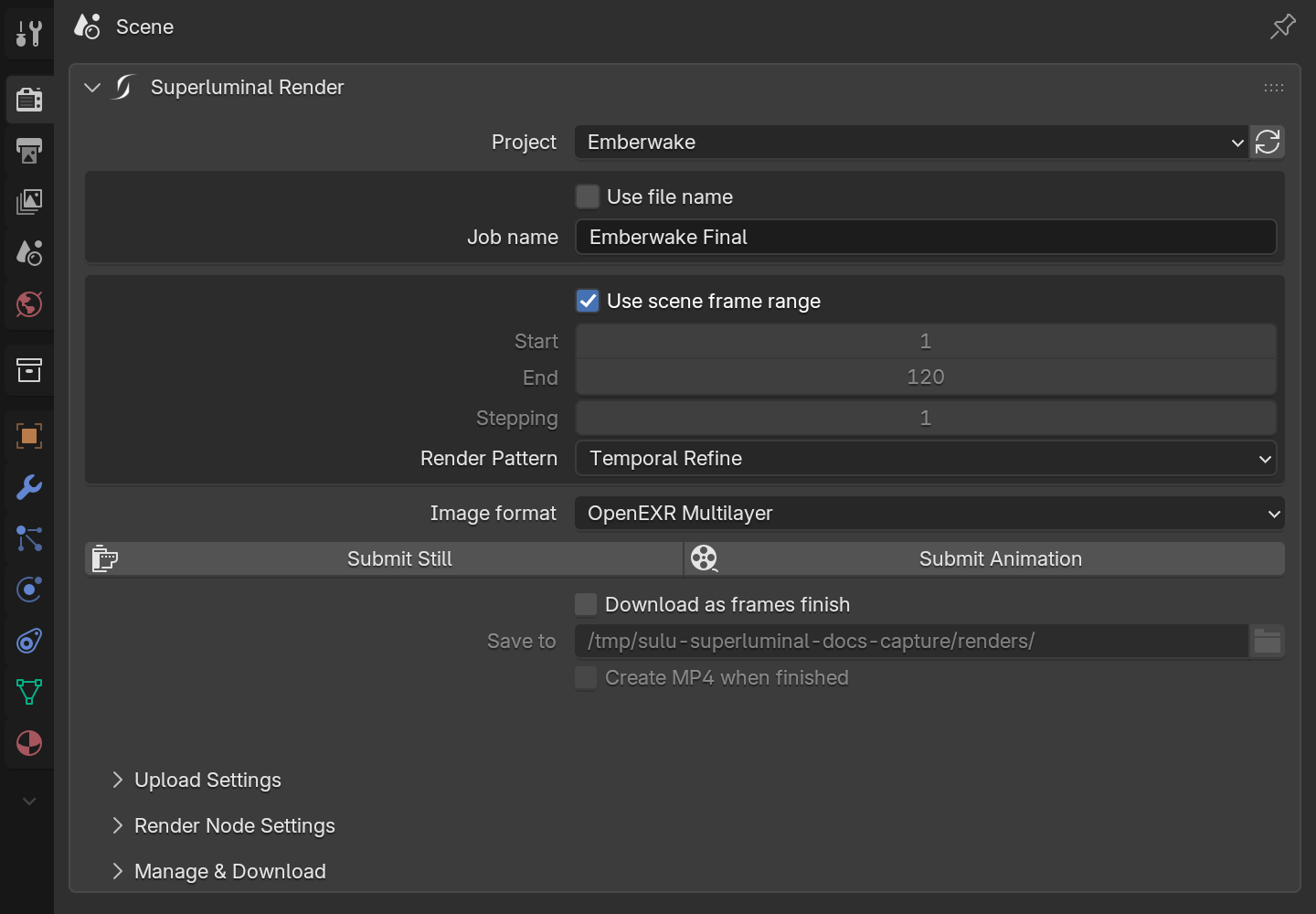
*Job settings, top to bottom.*
Name and project
- Project determines where the job appears and, for PROJECT uploads, where reusable files are synchronized.
- Use File Name derives the job name from the saved
.blendfilename. - Disable it to enter a custom name that is easier to spot in the job list.
Frame range
Use Scene Frame Range takes the scene start, end, and step. Disable it to enter custom values.
Submit Still
Opens a frame picker. Choose the current frame or enter one. Use it to test a representative production frame before an animation.
Submit Animation
Submits the configured scene or custom range. Confirm the step. A step of 2 renders every other frame, not a different order.
Render pattern
| Pattern | What it does | When it helps |
|---|---|---|
| Linear | Schedules the requested frames in ascending order. | Predictable delivery from the start of a sequence. |
| Temporal Refine | Schedules coarse coverage first, then fills the gaps by repeatedly refining the interval. | Early whole-sequence review and motion checks. |
| Progressive Stepping | Currently uses the same coarse-to-fine scheduling behavior as Temporal Refine. | Compatibility with workflows that already select this label. |
Render pattern changes frame order only, not the frame range or image quality.
Image format
| Selection | Result |
|---|---|
| Scene Image Format | Uses the current Blender Output Properties → File Format. The detected format appears in the label. |
| PNG | Individual lossless PNG frames. |
| JPEG | Individual lossy JPEG frames. |
| OpenEXR | Lossless OpenEXR frames. |
| OpenEXR Lossy | Lossy OpenEXR frames. |
| OpenEXR Multilayer | Lossless multilayer OpenEXR frames. |
| OpenEXR Multilayer Lossy | Lossy multilayer OpenEXR frames. |
Video output is not supported
If the effective format is a video container, both submit buttons are disabled. Render an image sequence and encode afterward.
What happens after you click Submit
Validate
The add-on checks for a saved file, a connected account, a selected project, and a supported output.
Trace
The external worker discovers dependencies and evaluates the upload mode and add-ons.
Package or synchronize
ZIP builds a self-contained archive. PROJECT maps eligible files beneath its root and determines what changed.
Upload
The worker uploads the required data.
Register
The worker creates the render job only after preparation and upload. The job then appears in Blender and the web app.
The stages run in a terminal window that opens on submit.
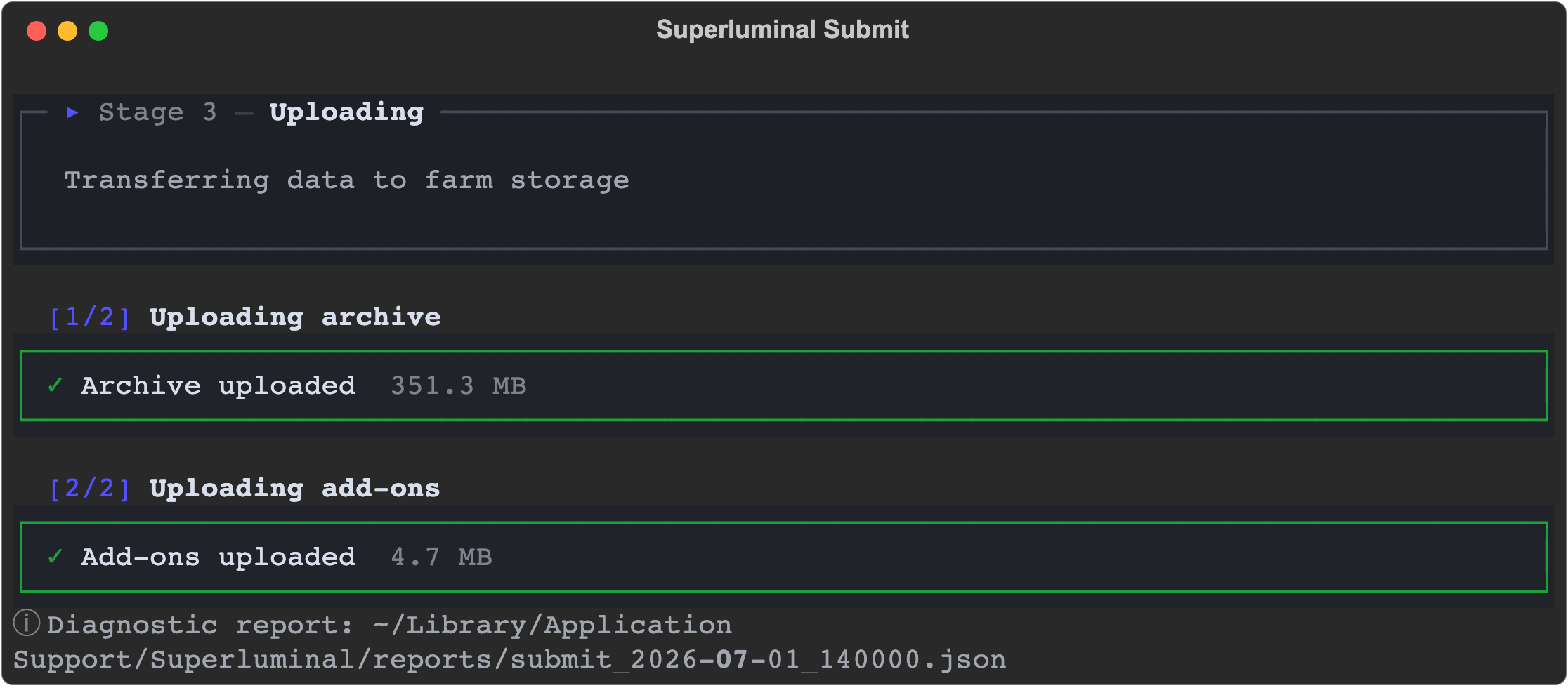
*The submission terminal during upload.*
Blender stays usable while the worker runs. Do not move, rename, or replace source files during the run. Progress appears in the terminal, not in Blender. The submission terminal guide covers each stage, the trace table, and errors.
Before a large animation
- Render a representative frame locally with the intended camera, engine, view layer, and output nodes.
- Submit that frame as a Superluminal still and download the full output.
- Check linked libraries, caches, textures, fonts, color transforms, and render-time add-ons.
- Confirm the organization balance and capacity in Billing.
- Confirm the exact animation range, step, output format, and Blender version.
- Upload settings: Choose between a self-contained ZIP and incremental PROJECT upload.
- Add-ons and dependencies: Understand what tracing can include and what needs manual attention.
- Follow the job: Use Manage & Download after the job registers.