Library and product delivery
Use the Owned, Created, Wishlist, and Orders tabs and choose the delivery path supported by each Sulu Market product.
Updated 2026-08-04
Open Market Library after you buy or claim a product. Four tabs:
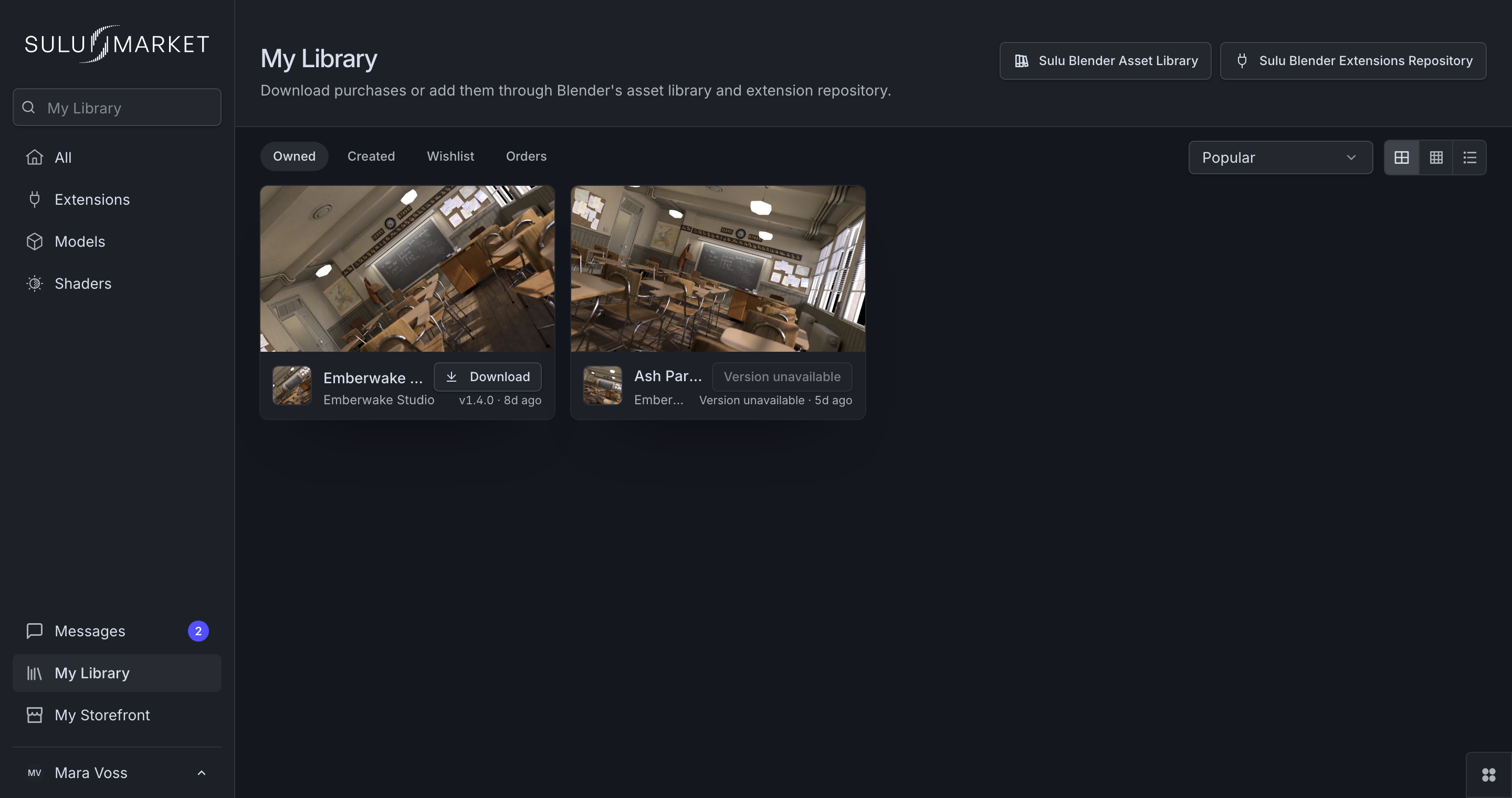
*Products you own live under Owned. The delivery action depends on the product's packaging.*
- Owned: products you own and can use
- Created: products from your own seller work
- Wishlist: saved products, purchased or not
- Orders: order history and status
Delivery paths
The available action depends on the delivery kind.
| Delivery | What to expect |
|---|---|
| Manual files | Download the provided files and follow the seller's instructions. |
| Blender extension | Installs through Blender's Get Extensions, using the repository setup below. |
| Blender asset | Arrives in Blender's Asset Browser, using the asset-library setup below. |
| Mixed delivery | Follow the product-specific actions. Some parts install directly while others need a manual download. |
Manual download remains useful for backups, inspection, or a machine without the integration.
Set up the Sulu asset library in Blender
Purchased assets appear in Blender's Asset Browser through one personal remote library URL. Set it up once. Current and future purchases arrive through it.
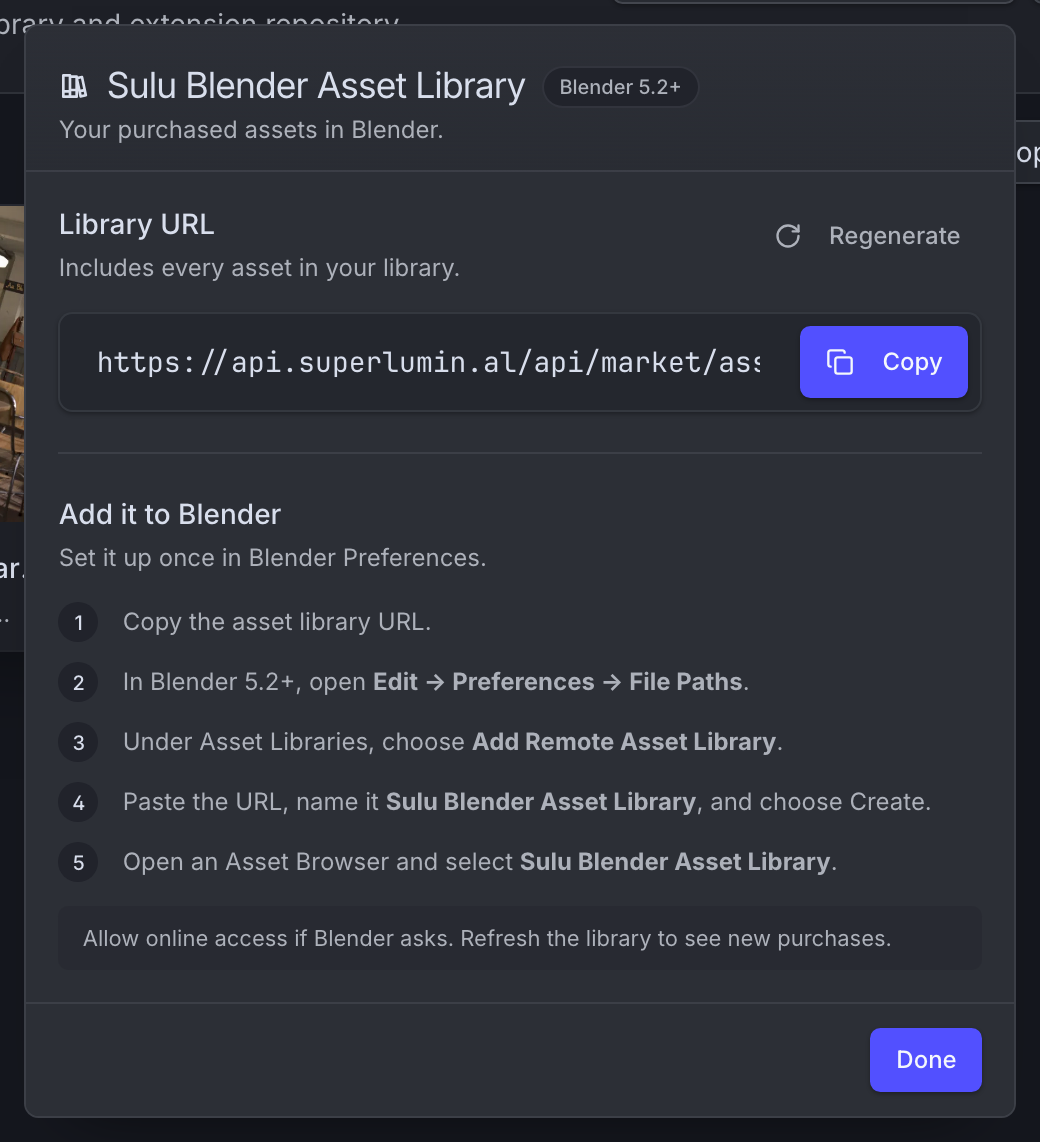
*The Sulu Blender Asset Library popover after Create, with the personal URL and setup steps.*
Create your library URL
In My Library, open Sulu Blender Asset Library and choose Create. The URL grants access to your assets. Treat it like a password and regenerate it if it leaks.
Copy the URL
Use the copy button next to the URL.
Add a remote library in Blender
In Blender 5.2+, open Edit → Preferences → Asset Libraries, click +, and choose Add Remote Asset Library. Paste the URL and name it Sulu Blender Asset Library.
Allow online access
If Blender shows Internet Access Required, choose Allow Online Access. Remote libraries cannot sync without it.
Use it in the Asset Browser
Select Sulu Blender Asset Library as the Asset Browser source and drag assets into the scene. The default Pack import embeds them into your file.
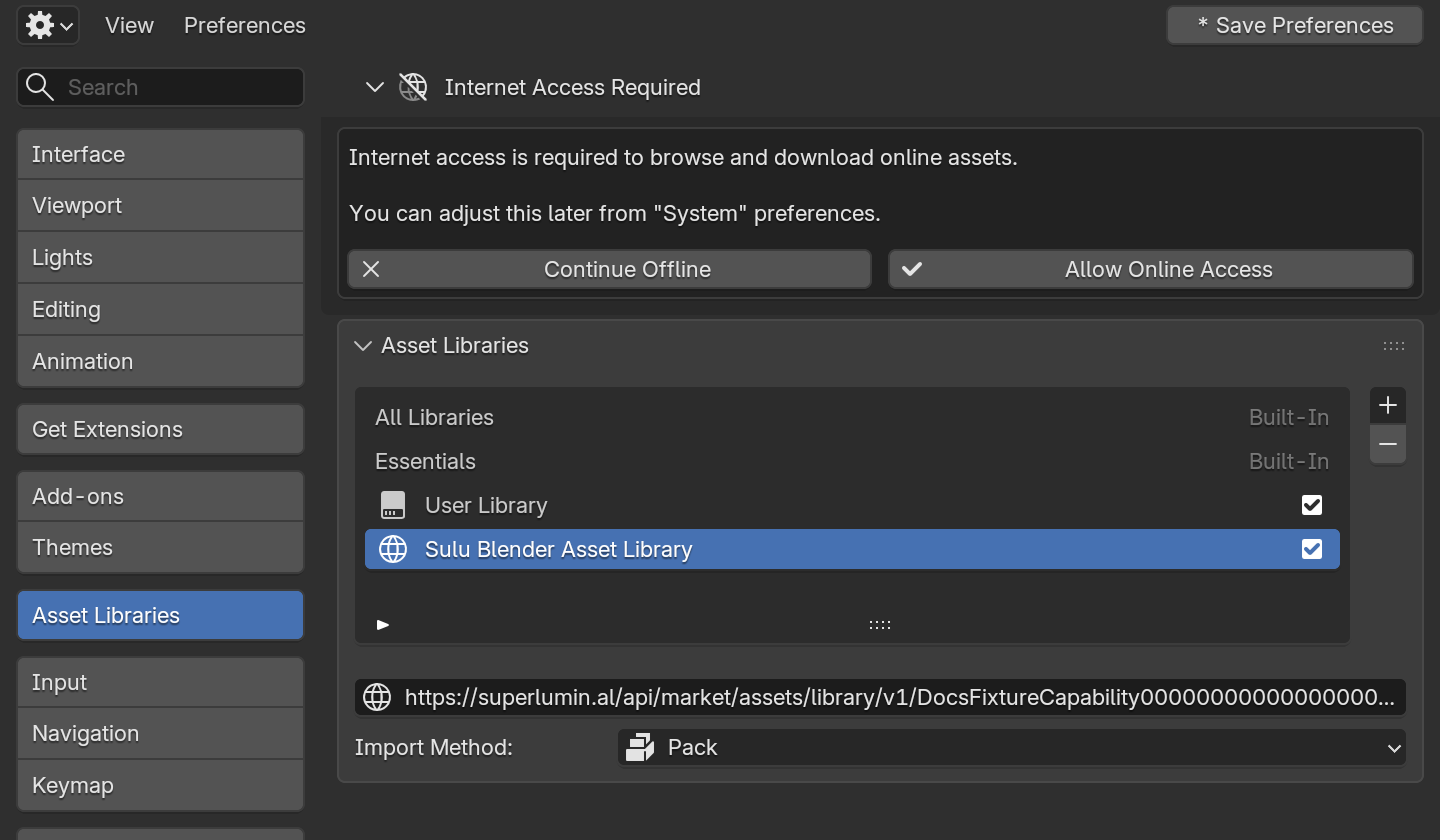
*Blender's preferences with the Sulu remote entry, your URL, and the Pack import method.*
New purchases appear after a library refresh. If one is missing, use the Asset Browser's refresh action.
Set up the Sulu extensions repository in Blender
Purchased extensions install and update through Blender's own Get Extensions, using a personal repository URL plus an access key.
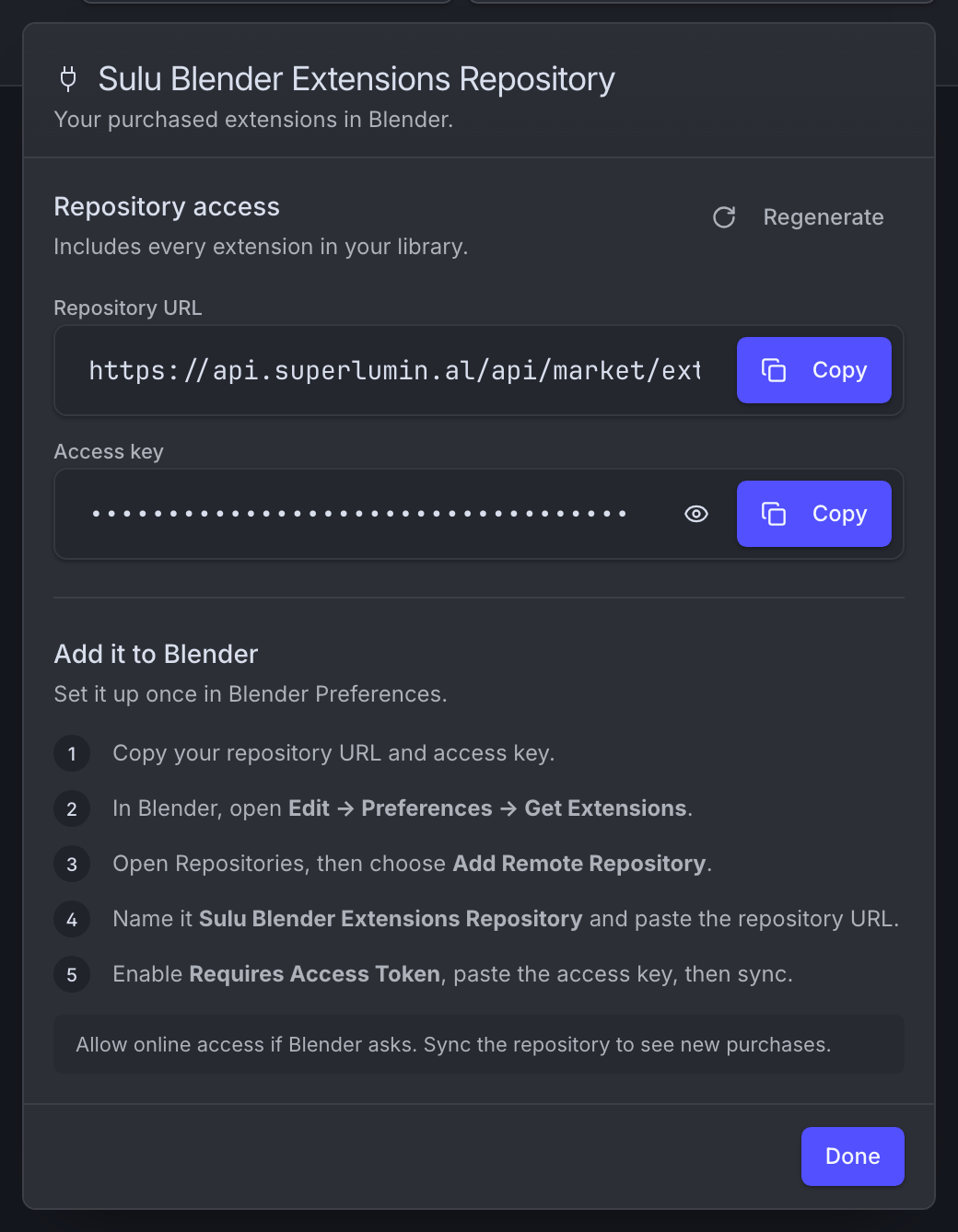
*The Sulu Blender Extensions Repository popover after Create, with the repository URL and access key.*
Create the repository credential
In My Library, open Sulu Blender Extensions Repository, choose Create, and copy the repository URL and access key.
Add a remote repository in Blender
Open Edit → Preferences → Get Extensions, open the Repositories menu, and choose Add Remote Repository.
Paste URL and access key
Paste the repository URL, enable Requires Access Token, paste the access key into Secret, and choose Create.
Install your extensions
After the sync, purchased extensions show ordinary Install buttons in Get Extensions. Updates arrive like Blender's official extensions.
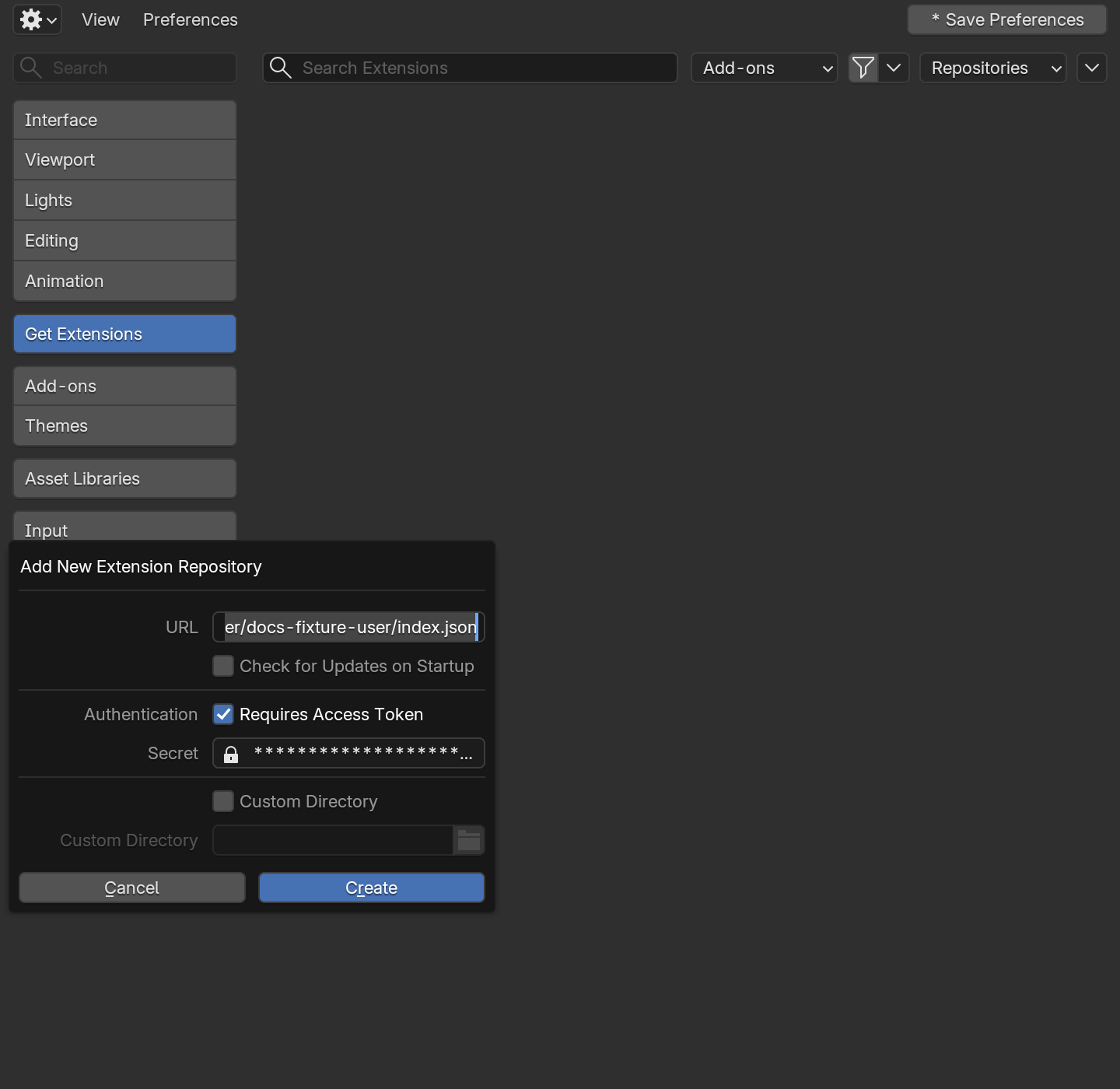
*Blender's Add New Extension Repository dialog with the Sulu URL and the access key as a secret.*
Owning a product and seeing its purchase record differ
Organization purchase history can be limited to owners and finance administrators. Owned products stay under Owned regardless.
Verify a download or installation
Read product instructions
Check compatibility, install location, dependencies, and update notes in Overview/Wiki or the package.
Choose the supported action
Use the repository or asset-library setup only when the Library offers it for that product.
Restart or refresh Blender
Follow the product instructions and confirm the extension or library appears where expected.
Test in a disposable file
Confirm the product works before opening a deadline-critical scene.
If a purchased product is missing
- Confirm checkout completed and you are signed in with the buying account.
- Check Owned, not only Orders.
- Confirm you are in the purchasing organization.
- Note the order or product ID before contacting support.
- Do not buy again because the Library has not refreshed yet.
- Buying: Choose compatible products and complete checkout deliberately.
- Sulu Market billing: How purchase history differs from the products you own.
- Support: Report a missing product with safe account and order context.